Paradox Academy
The M System at a glance
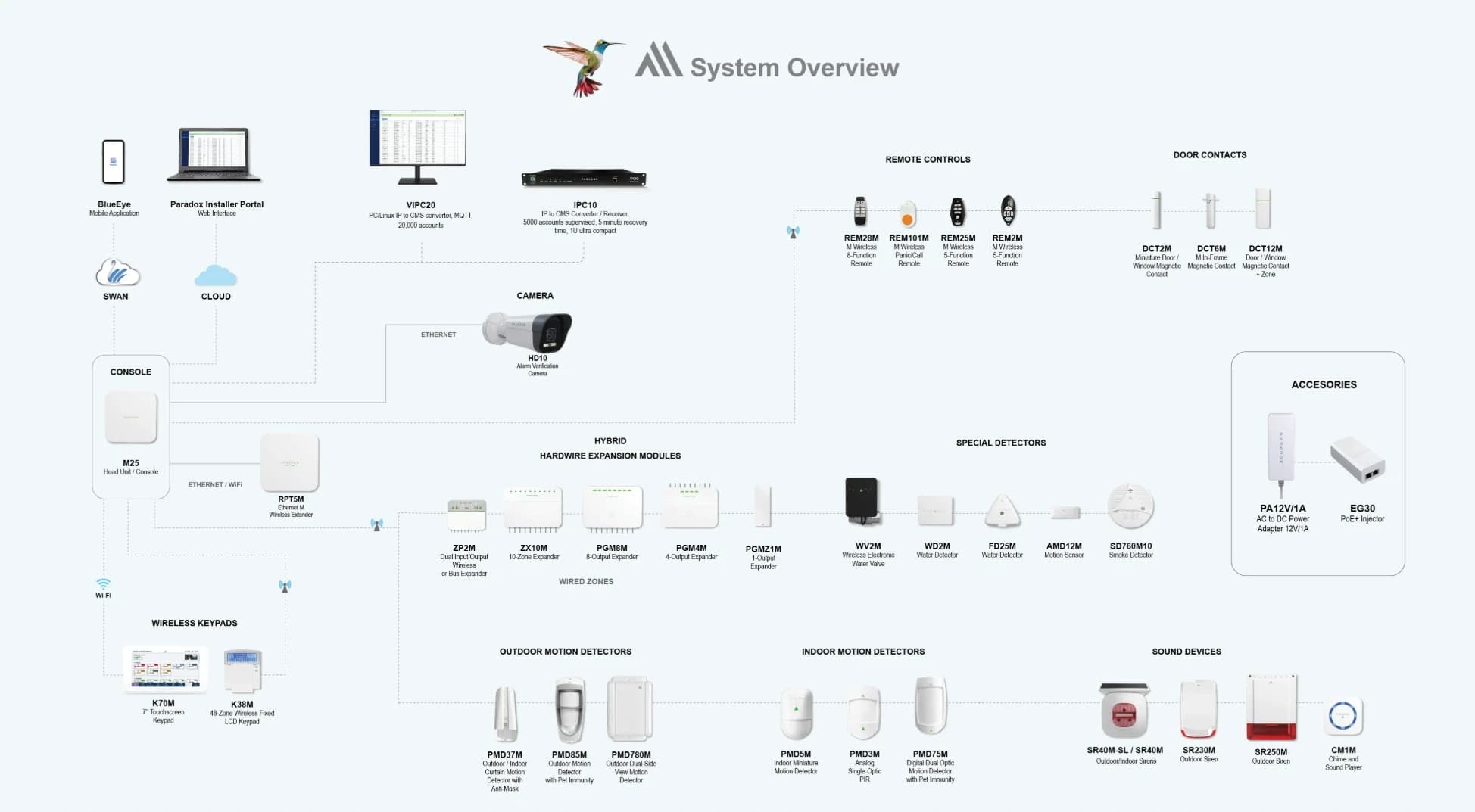
Swipe the map sideways and tap a device
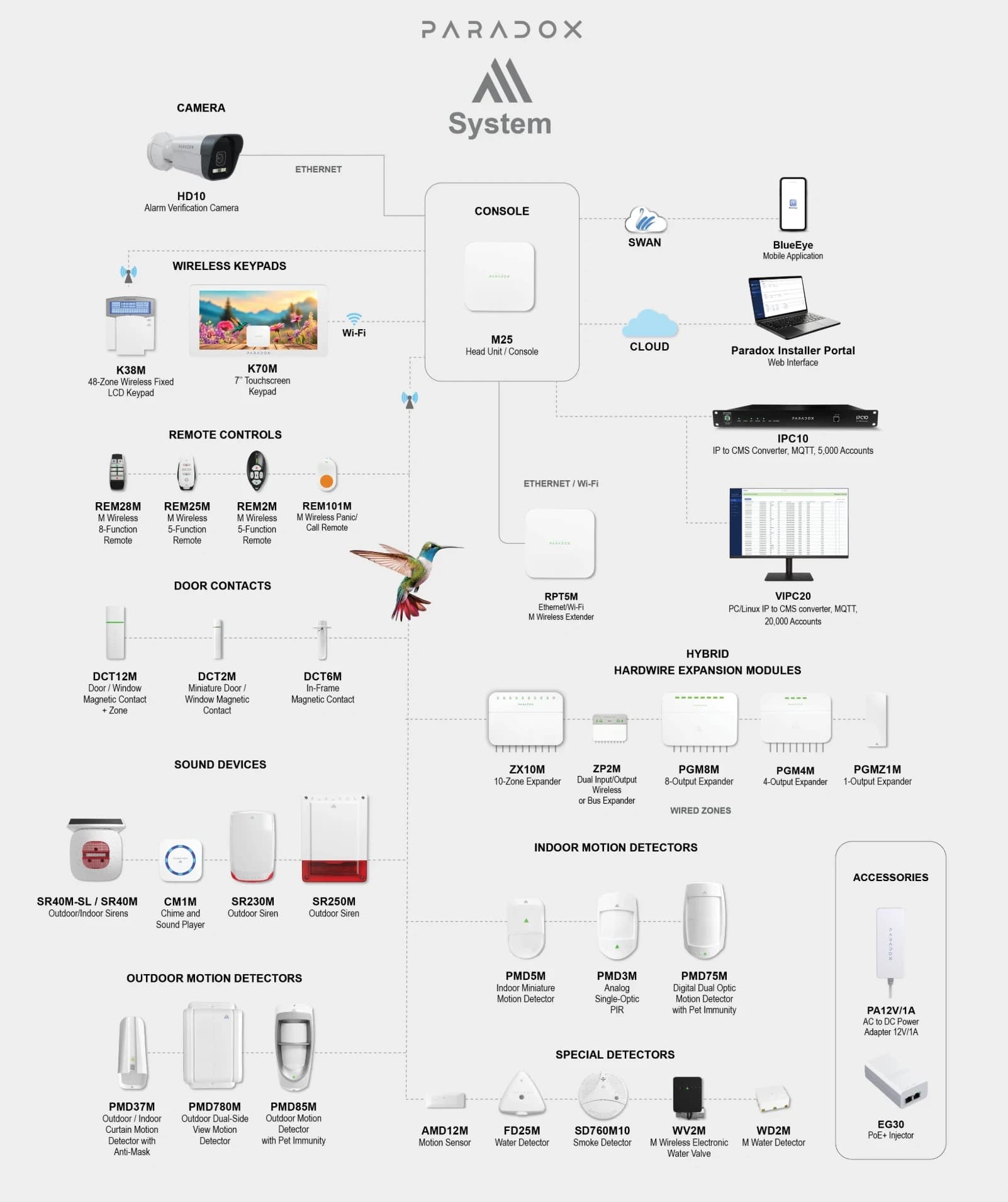
Frequently asked questions
About the M System
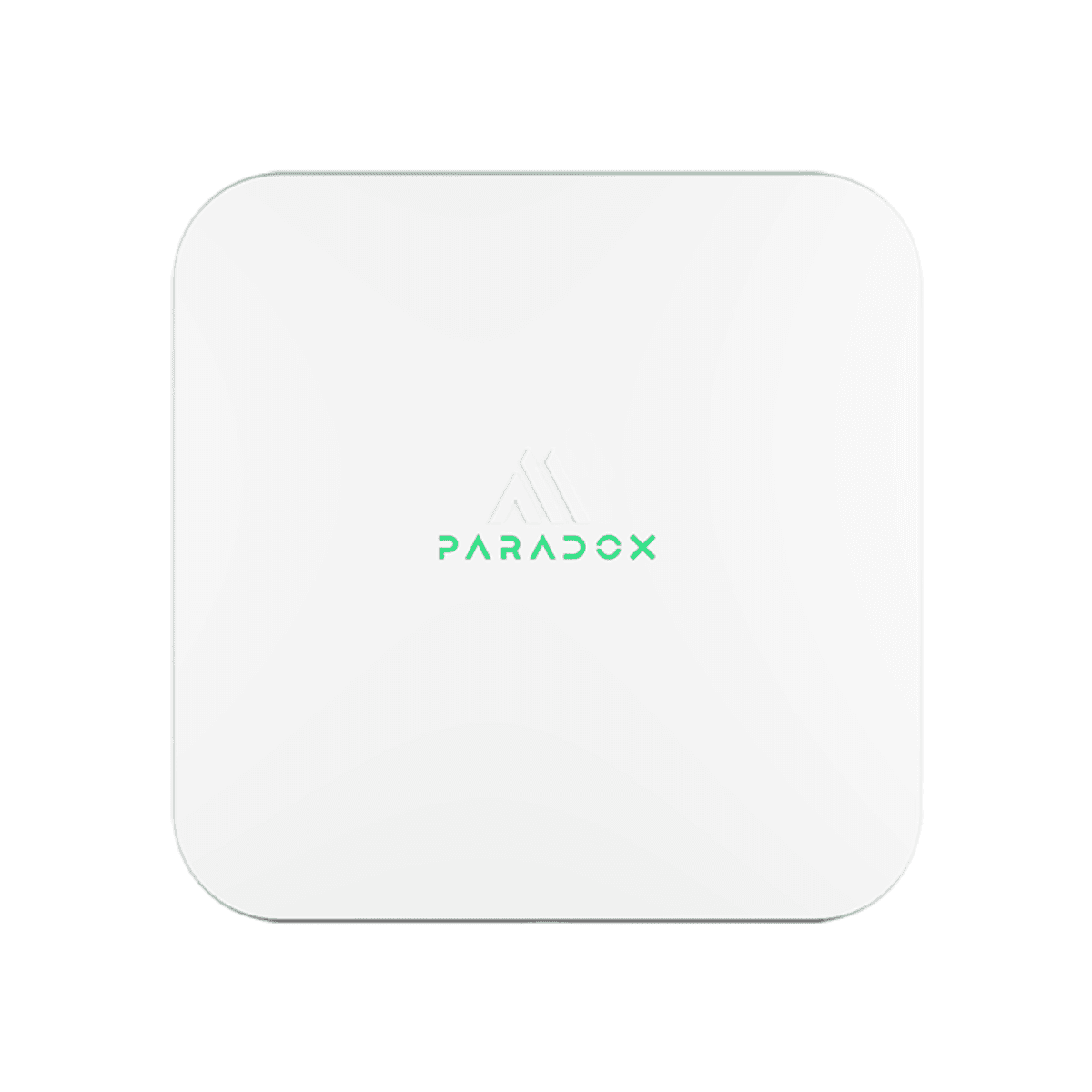
What is Paradox M25?
Paradox M25 is a compact hybrid (wireless and wired) console, the head unit of the M System. It suits apartments, homes and businesses: it connects wireless, wired and Ethernet devices, is managed from the mobile app and is easy to expand.
Where can M25 be used?
- Apartments and homes.
- Offices and shops.
- Small commercial and mixed-use buildings.
Up to 10 partitions let one system guard areas separately, such as a house and its garage or several office floors.
How many devices and users does M25 support?
- Up to 75 wireless devices per system.
- Up to 200 zones and 10 partitions.
- Up to 128 users and 128 remotes (up to 4 per user).
- Up to 45 Ethernet expansion devices: repeaters, keypads, cameras and access modules.
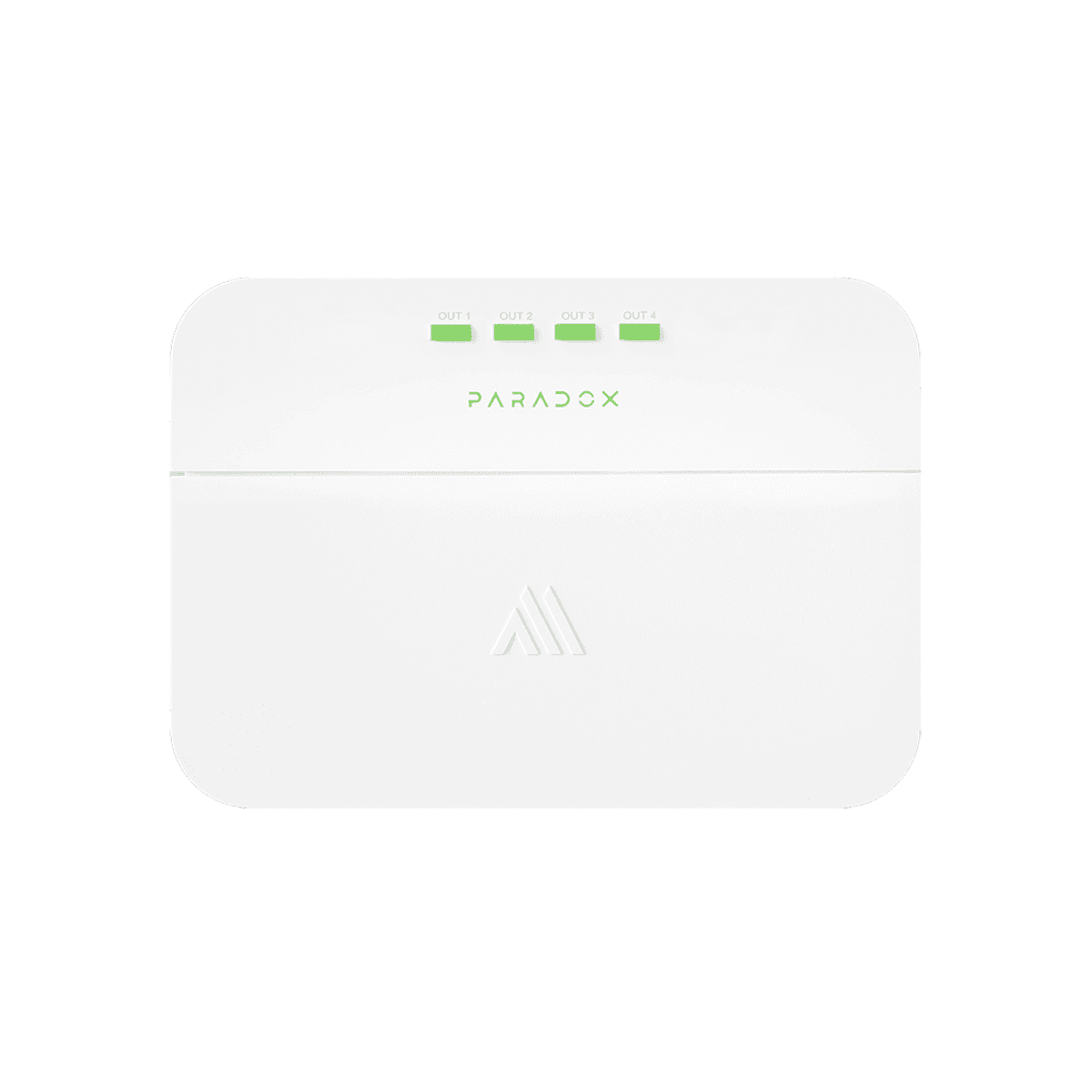
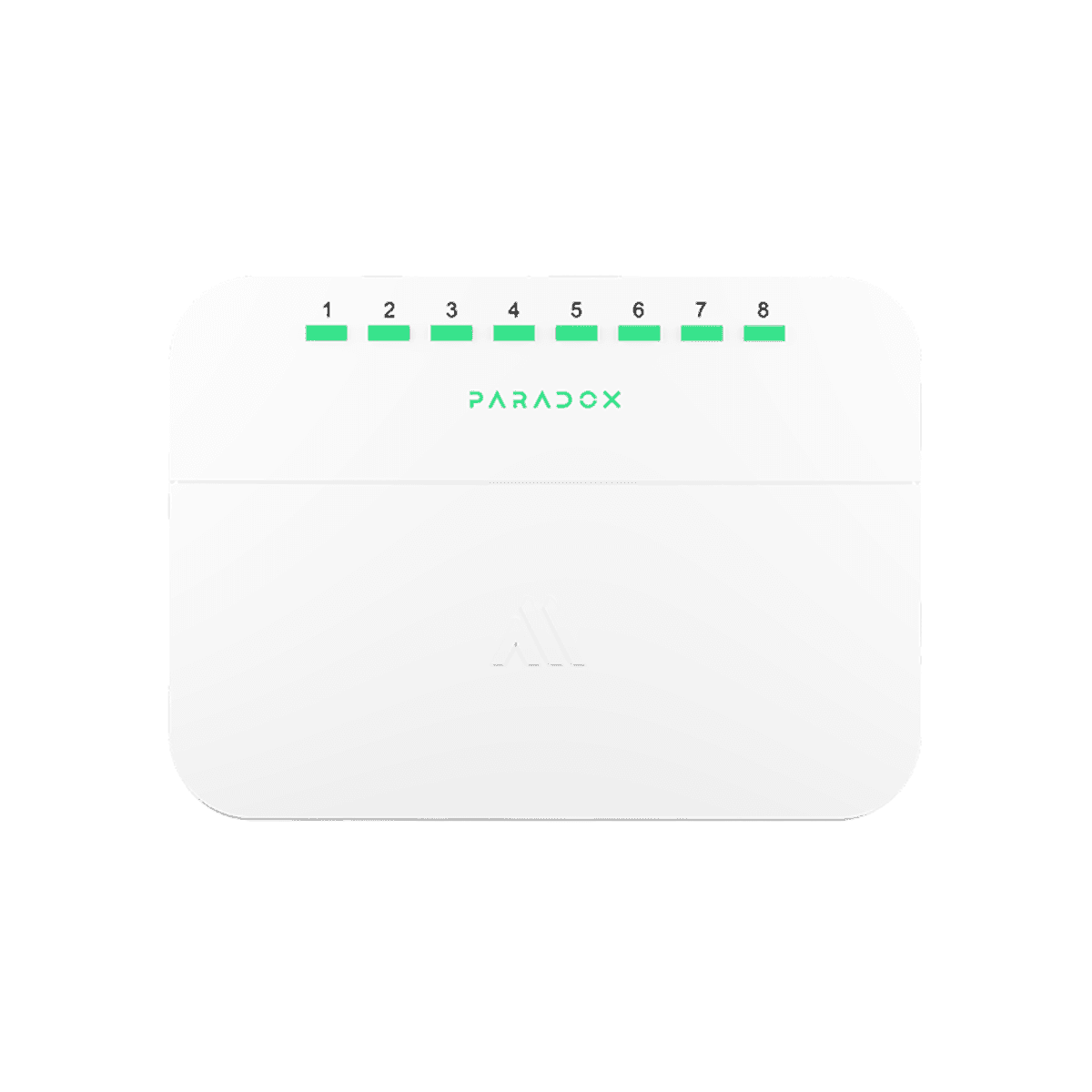
- Up to 48 programmable outputs with wireless expanders.
Can the system be expanded later?
Yes. The M System is modular: you can add wireless, wired and Ethernet devices, users and automation at any time. It is ready to integrate video verification and access control in the future.
Which certifications does M25 have?
M25 meets CE, EN 50131-3, EN 50131-6, EN 50131-5-3, EN 50136-1 and EN 50136-2: Security Grade 2, Environmental Class II. Its transmission category is SP4 (M25) and DP3 (M25 LTE). Each device lists its certifications on its page.
Installation
How do I start installing M25?
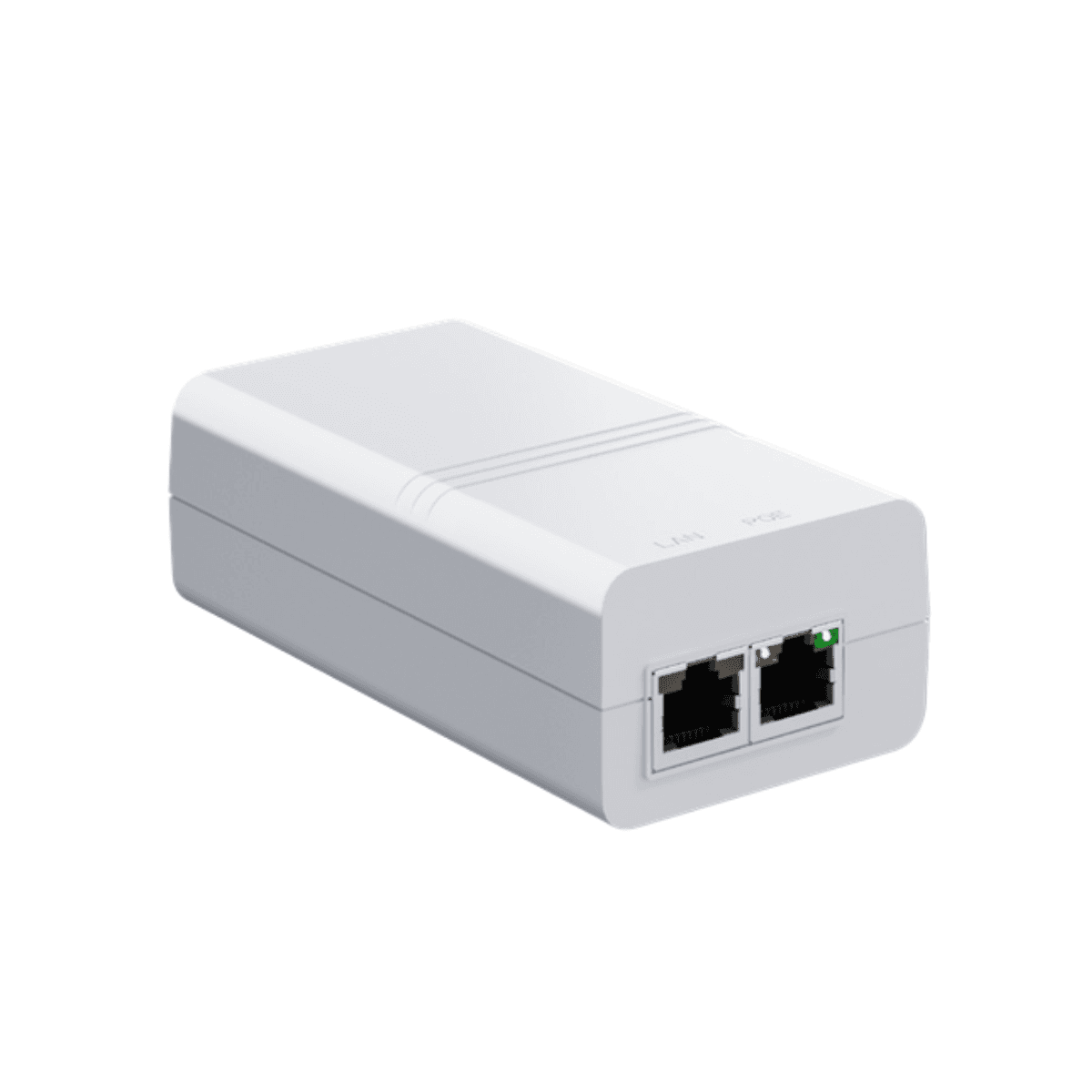
- Connect the console with one Ethernet cable with PoE: it carries both power and data.
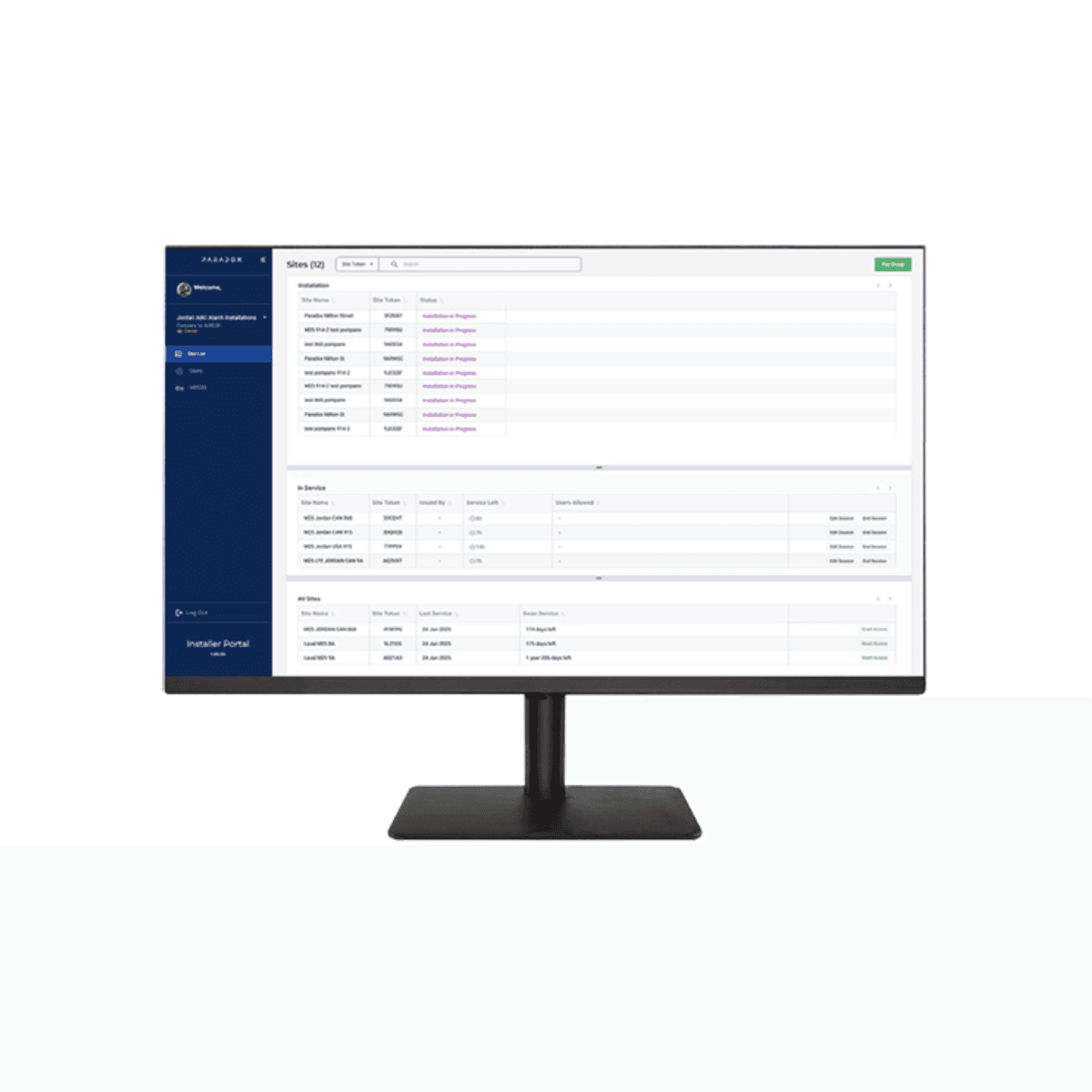
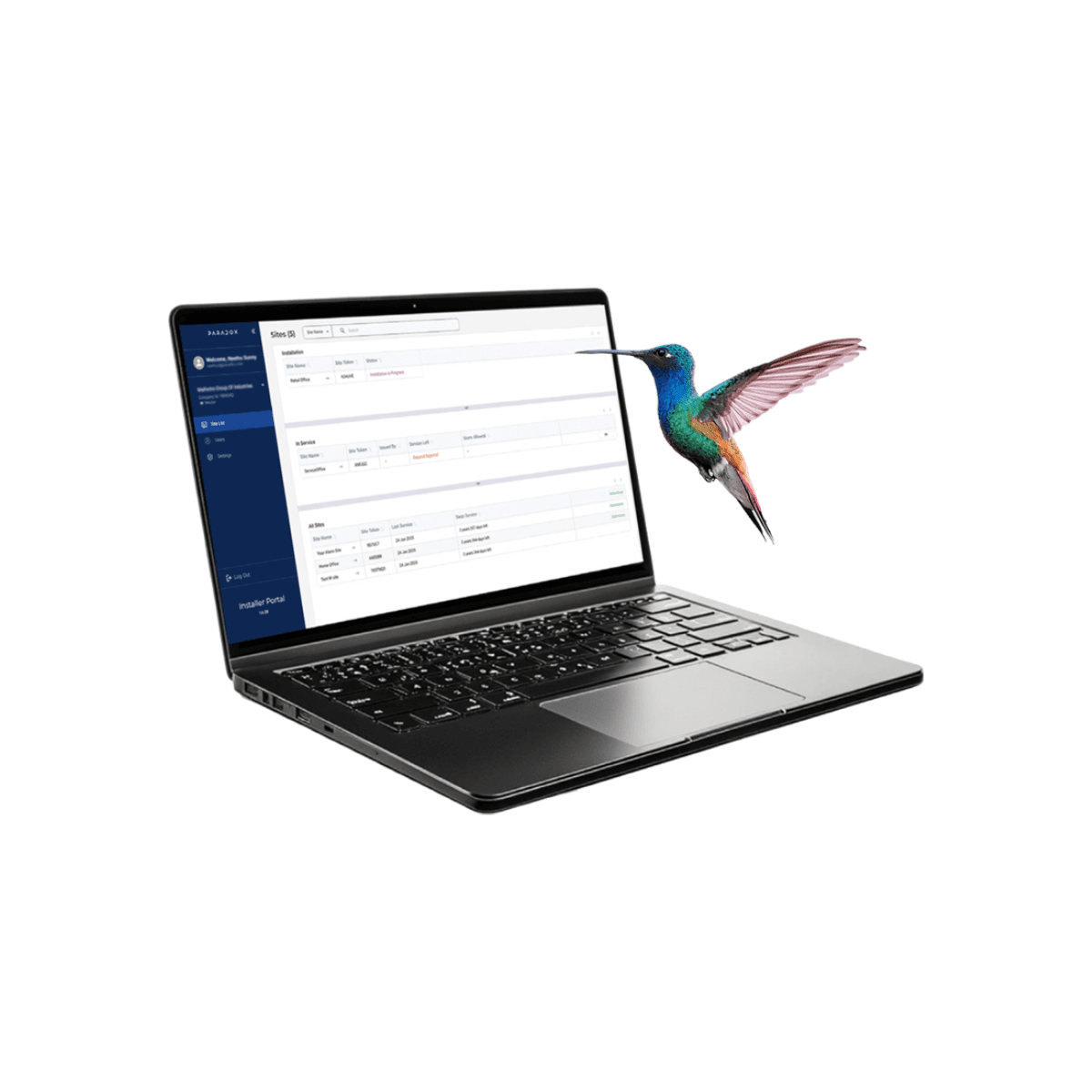
- Activate the site in the BlueEye mobile app or the Service Company Portal.
- Scan the QR code or enter the serial number.
- Start Auto-Learn so the system finds the devices.
Every step is in "How M25 works" and in the installation manual.
Who can install the M System?
The system is installed by a registered installer with a Paradox Company ID (PCI), which you get by registering in the BlueEye mobile app or the Service Company Portal. We run free training for installers.
How are devices added to the system?
Auto-Learn finds wireless and Ethernet devices and links them securely. You can also add a device by scanning its QR code or entering its serial number, which lets you program the system in advance, before you reach the site.
How does the wireless link work, and how far does it reach?
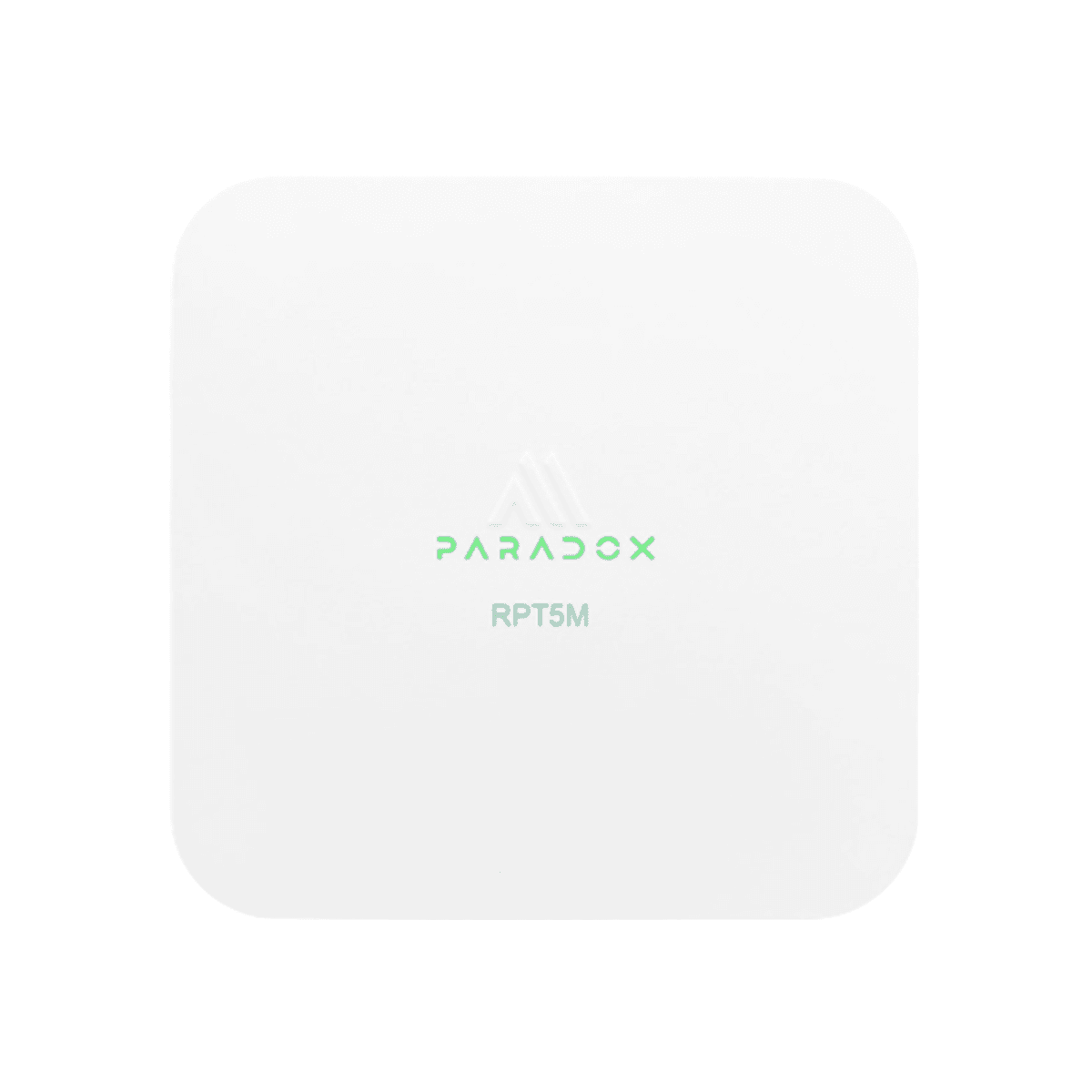
Devices talk over GFSK with encryption and frequency hopping in the 868 MHz band (in Europe). The link is two-way and supervised, and transmit power is managed so batteries last longer. Reach farther devices with the RPT5M repeater: up to 4 per system, each covering up to 1.5 km in open space.
Power and connection
How is the console powered?
M25 is powered over PoE through the same Ethernet cable that carries its data, so it needs no separate power supply or extra wiring. Inside is a 3.7 V, 5000 mAh lithium-ion backup battery.
How long does it run in a power cut?
On its backup battery the console runs for about 26 hours on Ethernet, 24 hours on Wi-Fi and 20 hours on LTE.
Which connections does M25 use?
Ethernet, built-in 2.4 GHz Wi-Fi and, on the M25 LTE model, LTE. Each can be the main or the backup channel, so the system stays connected when one link fails.
Can it report to a monitoring station without the cloud?
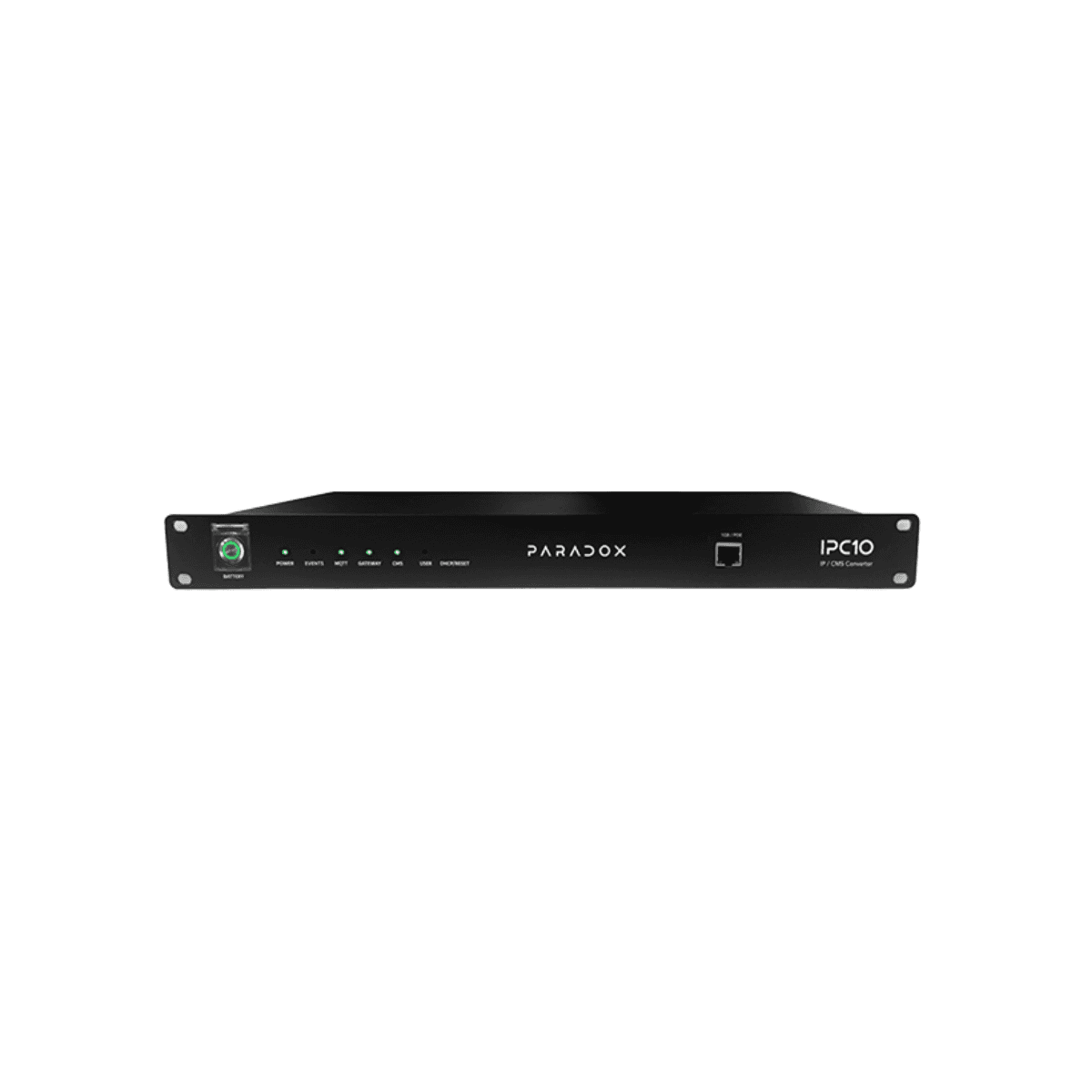
Yes. M25 reports directly and supervised to the central monitoring station (CMS) through up to four IPC10 or VIPC20 IP receivers, so it does not depend on third-party services or their outages.
Mobile app and control
What is BlueEye?
Paradox’s free mobile app for iOS and Android. It brings real-time alarm notifications, arms and disarms the system, controls outputs and gives other users access with their own permissions.
Which user roles are there?
Owner, Master, User, Maintenance and Guest. The Owner and Masters always keep full control, and the installer’s access is either permanent or granted by the Owner.
Which arming modes are there?
- Stay, Sleep and Full arm.
- Auto arm on a schedule or when there is no movement.
- Auto disarm on a schedule, plus "Sleep to Stay" and "Stay to Disarm".
Can M25 control lights, gates or heating?
Yes, through programmable outputs: up to 48 with wireless expanders such as PGM8M or PGMZ1M. They switch manually, on a schedule, on system events, at sunrise or sunset, or by temperature.
How does temperature monitoring work?
Every wireless M System device has a temperature sensor. The system can switch an output for heating or cooling, report to the monitoring station and send notifications to the mobile app, so rooms neither freeze nor overheat.
How is the system updated?
Remotely, through the BlueEye mobile app. Updates reach not only the console but every wireless device connected to it, so you get new features and security fixes without a site visit.
Is remote access secure?
Yes. All cloud communication is encrypted, access follows user roles, and sign-in is protected by two-factor authentication.
Older system integrations
Can EVO, Spectra SP or Magellan connect to Home Assistant?
Yes, through the open-source PAI (Paradox Alarm Interface). It connects through the serial port or an IP150 module and publishes states over MQTT, so it works with Home Assistant, openHAB and Homebridge. It is a community project that neither Paradox nor we support. The M System does not work with PAI.
Does EVO work with openHAB?
Yes, the openHAB Paradox binding connects through an IP150 module. It is tested on the EVO192, and the EVO48 and EVO96 are listed too. Disarming is off at first for security.
How do I connect EVO to home automation through the PRT3?
A PRT3 or BUS2SER module connects an EVO48, EVO192 or EVOHD to a server, such as HSYCO, with a crossed RS-232 cable. In BabyWare, enable the serial port and the home automation protocol, choose ASCII and the speed (9600 by default). Do not use BabyWare 5.4.3.
Should I update EVO firmware to 7.50?
Not if your integration connects through the serial port. From version 7.50, EVO encrypts the serial link, and PAI can no longer connect through it. The update cannot be undone.
Support
Where can I find the device manuals?
In the "Manuals" section on this page. Search by model or name, or pick a category. Each product page has its manuals too.
What if a device fails?
Repairs and replacements are arranged through the wholesaler you bought the equipment from. If an installer needs technical help with a system, send a ticket on the "Technical ticket" page: describe the problem and add photos.
Do you run training?
Yes. We run free M System training for installers and security companies. Contact us to book a time.
Manuals
Expanders
Keypads
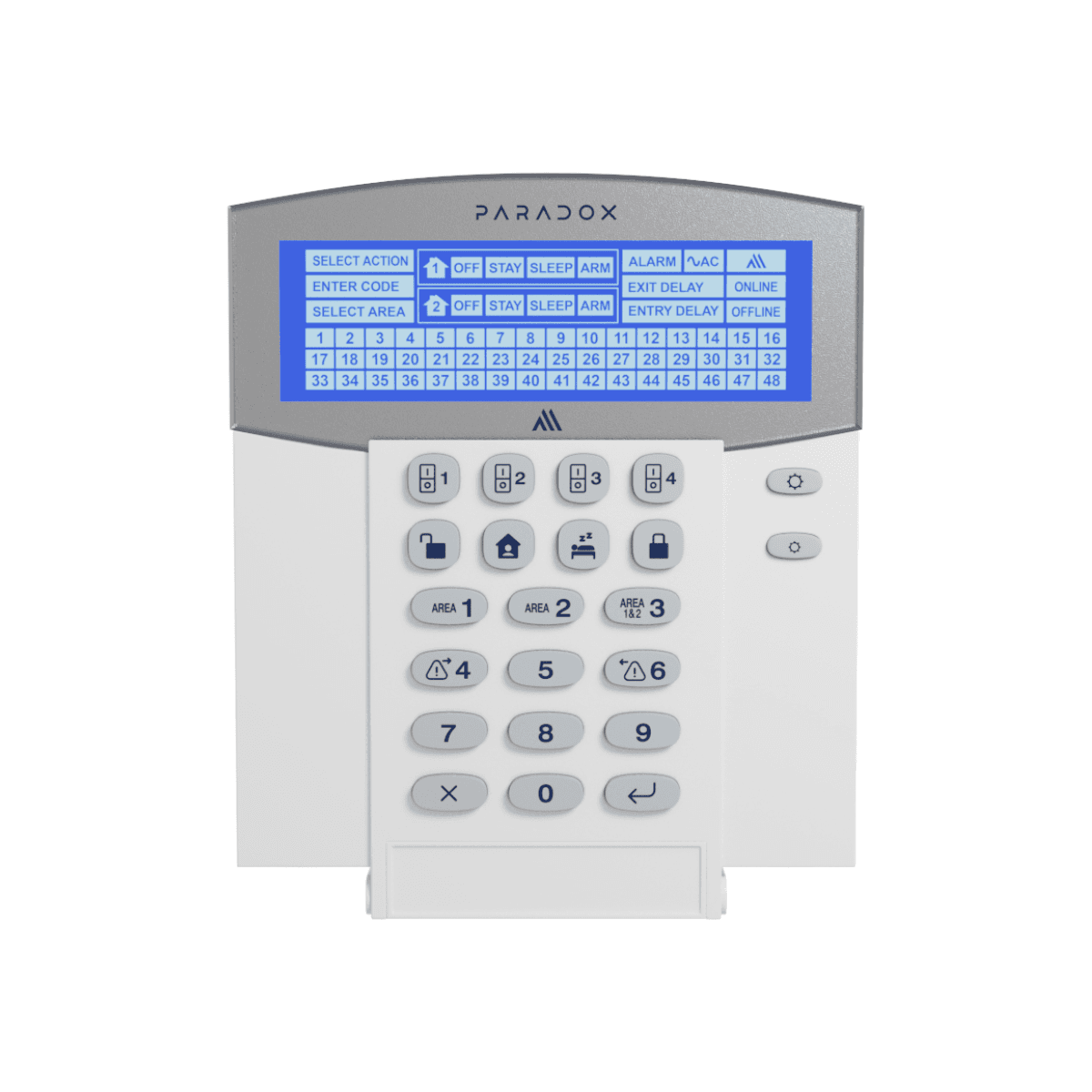
Door Contacts
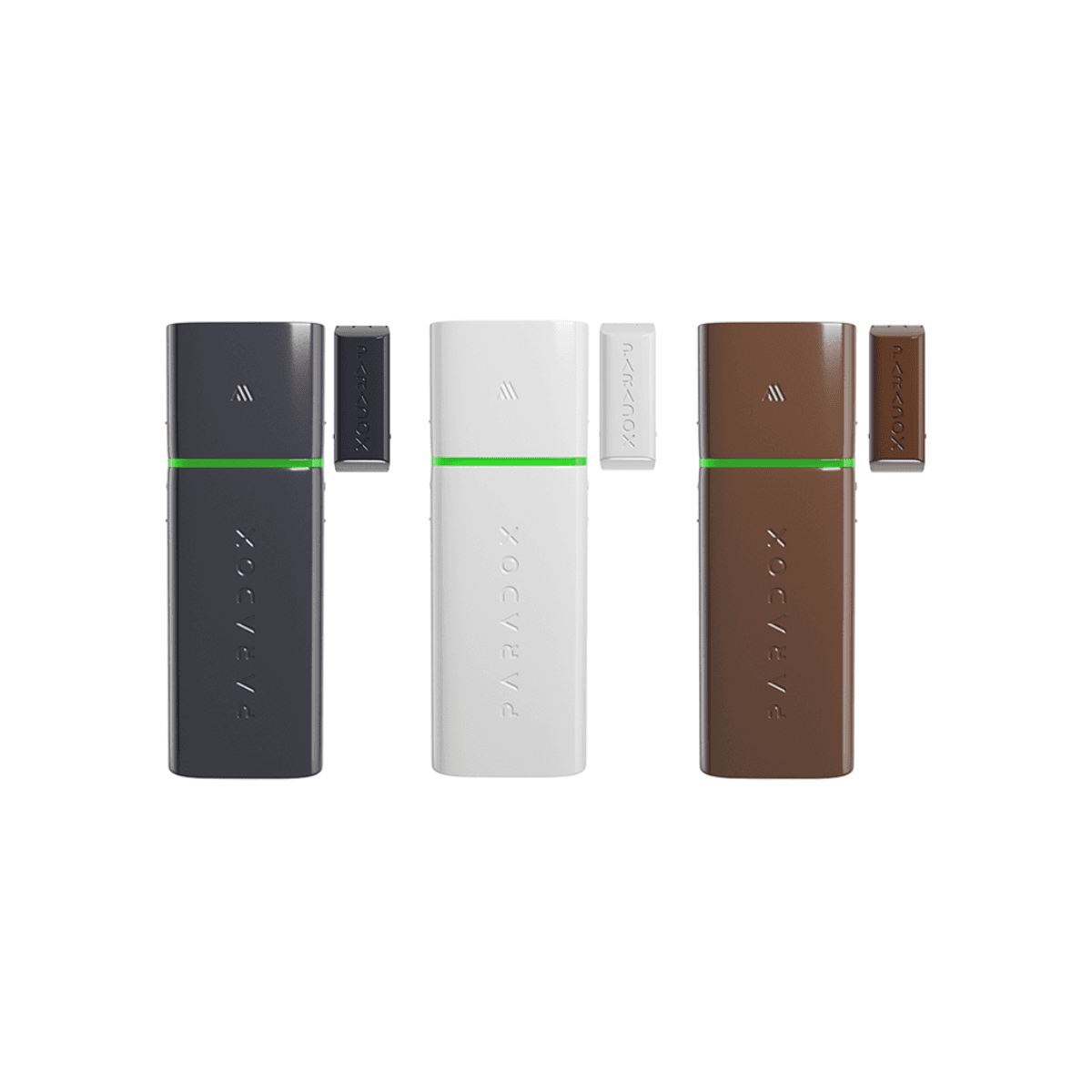
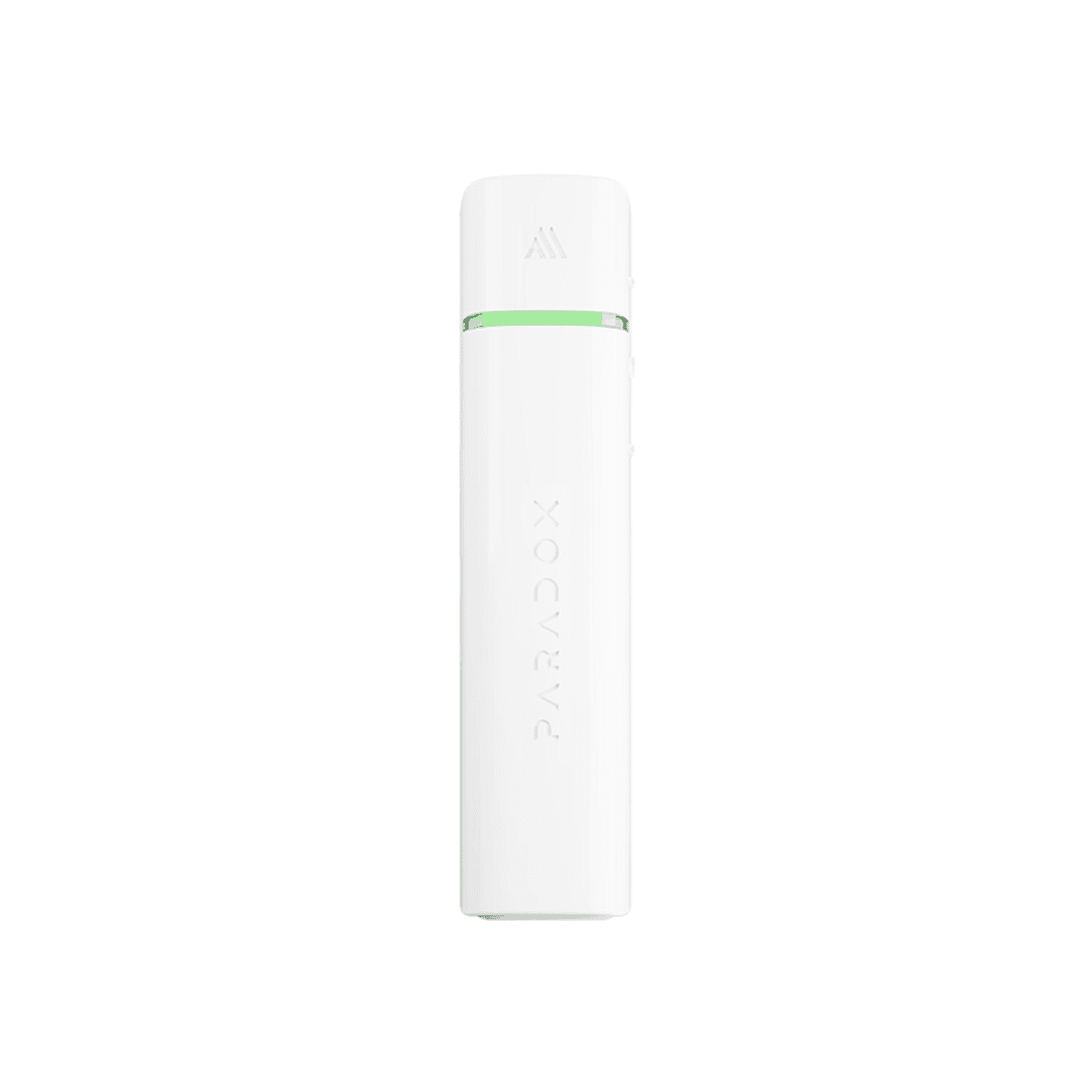
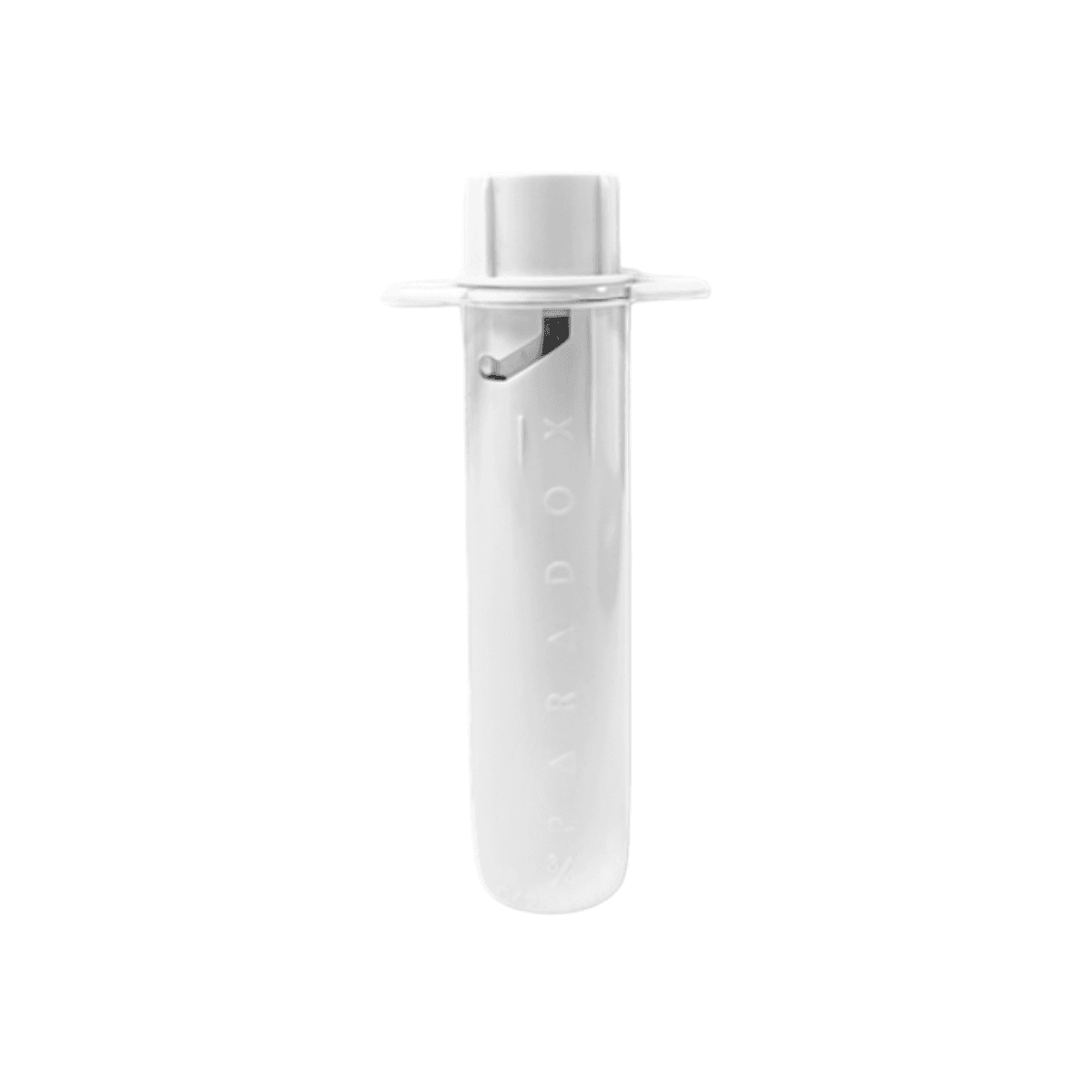
Detectors
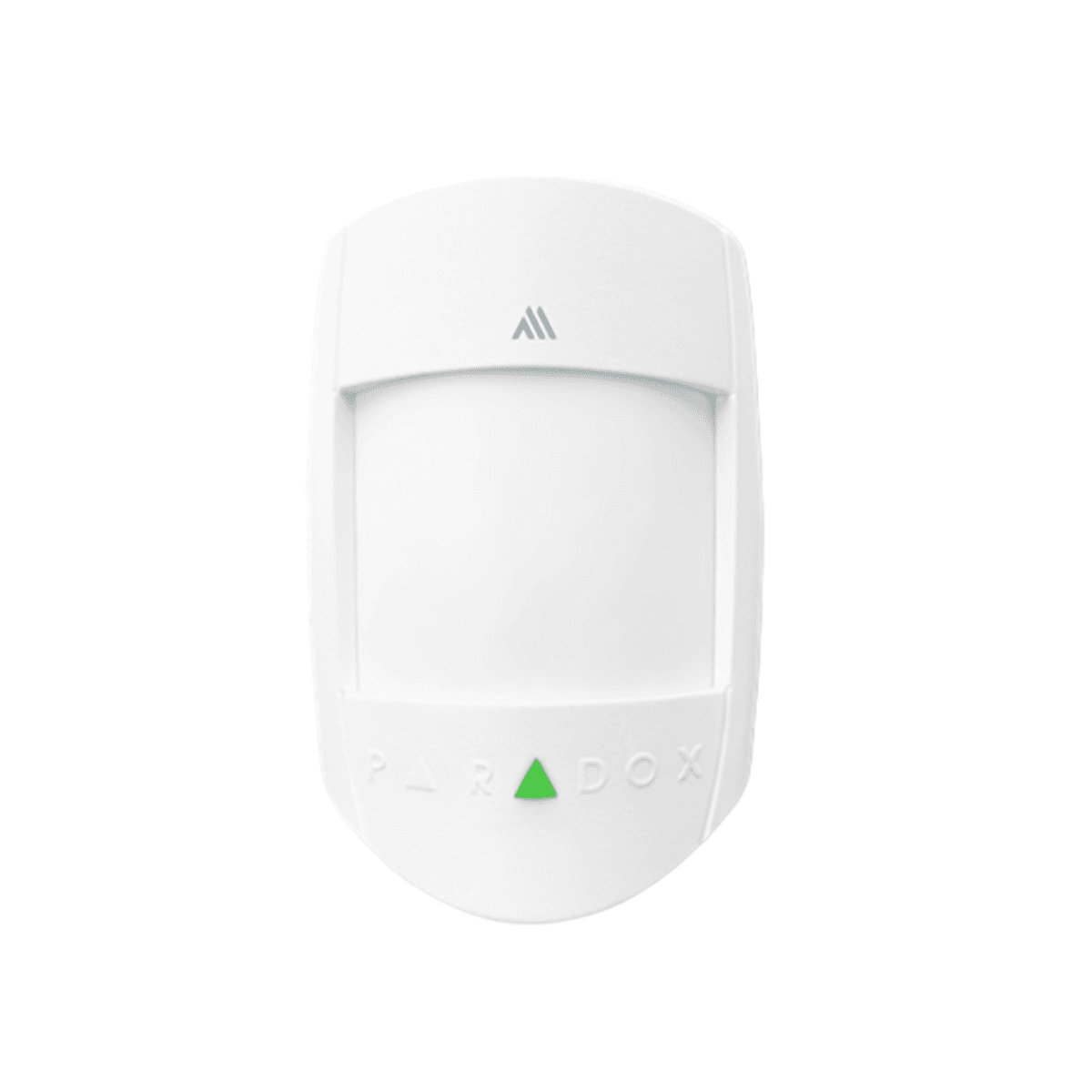 PMD3MM Analog Single-Optic PIRInstallation manualPDF, 1.0 MB
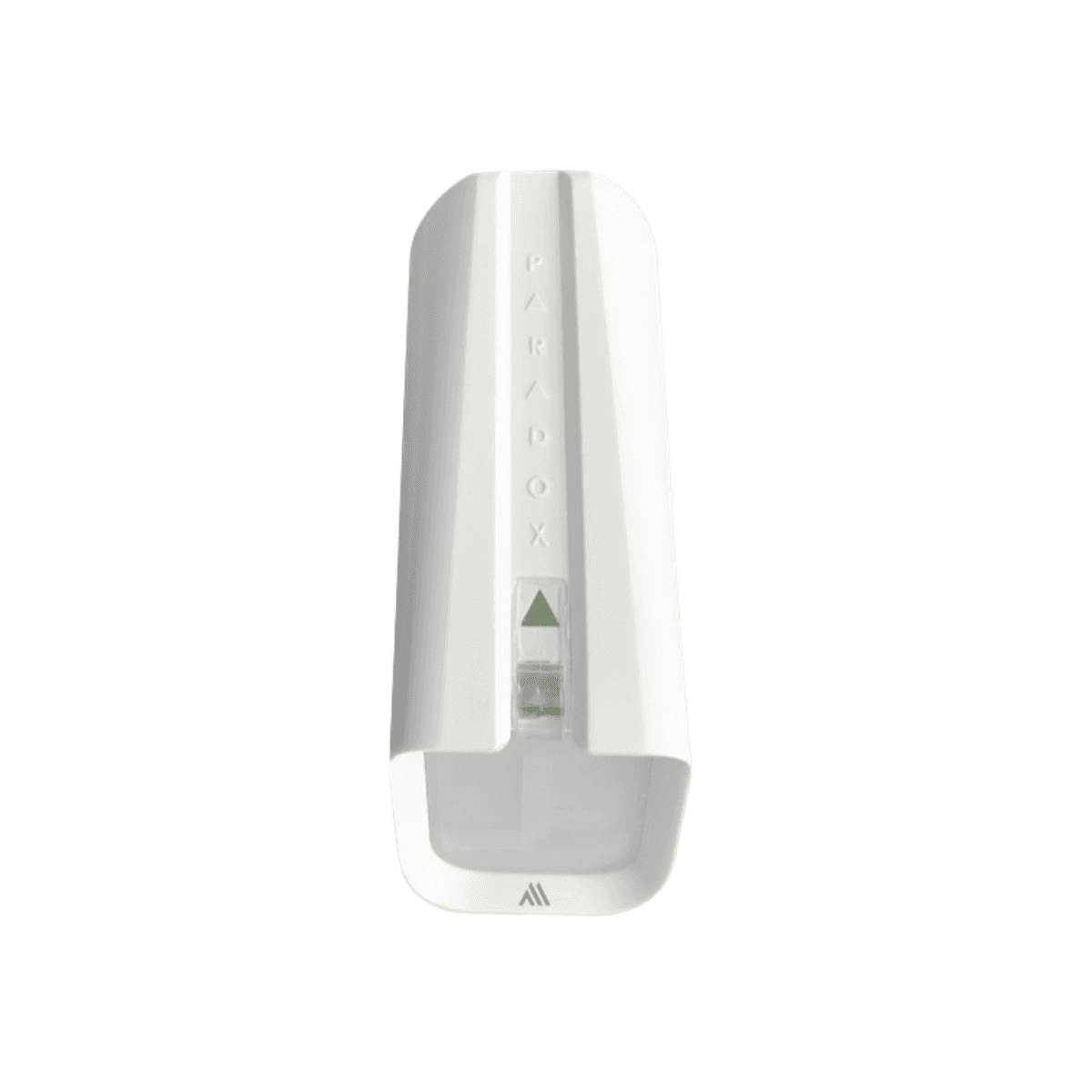 PMD37MM Outdoor / Indoor Curtain Motion Detector with Anti-MaskInstallation manualPDF, 1.3 MB
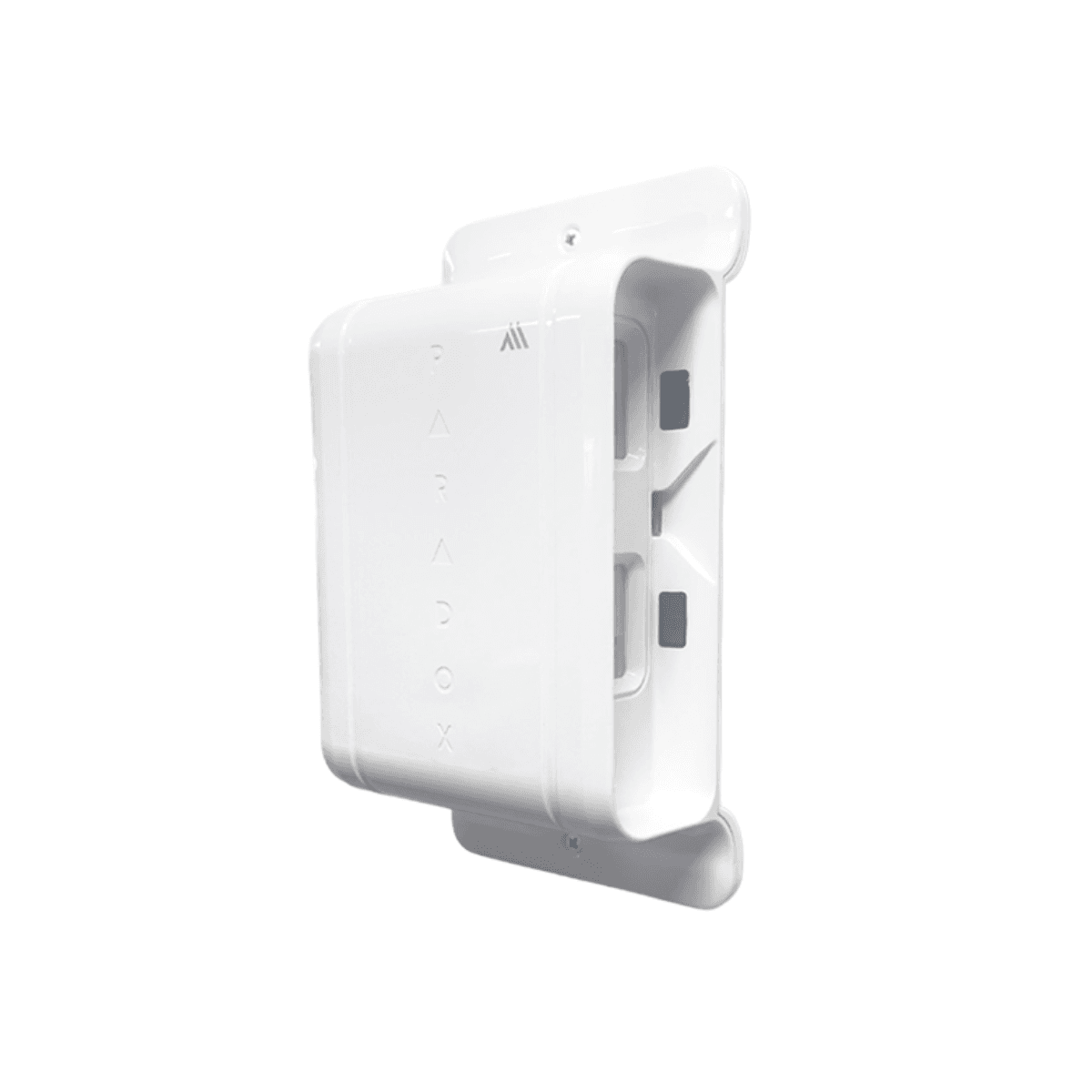 PMD780MM Outdoor Dual-Side View Motion DetectorInstallation manualPDF, 1.2 MB
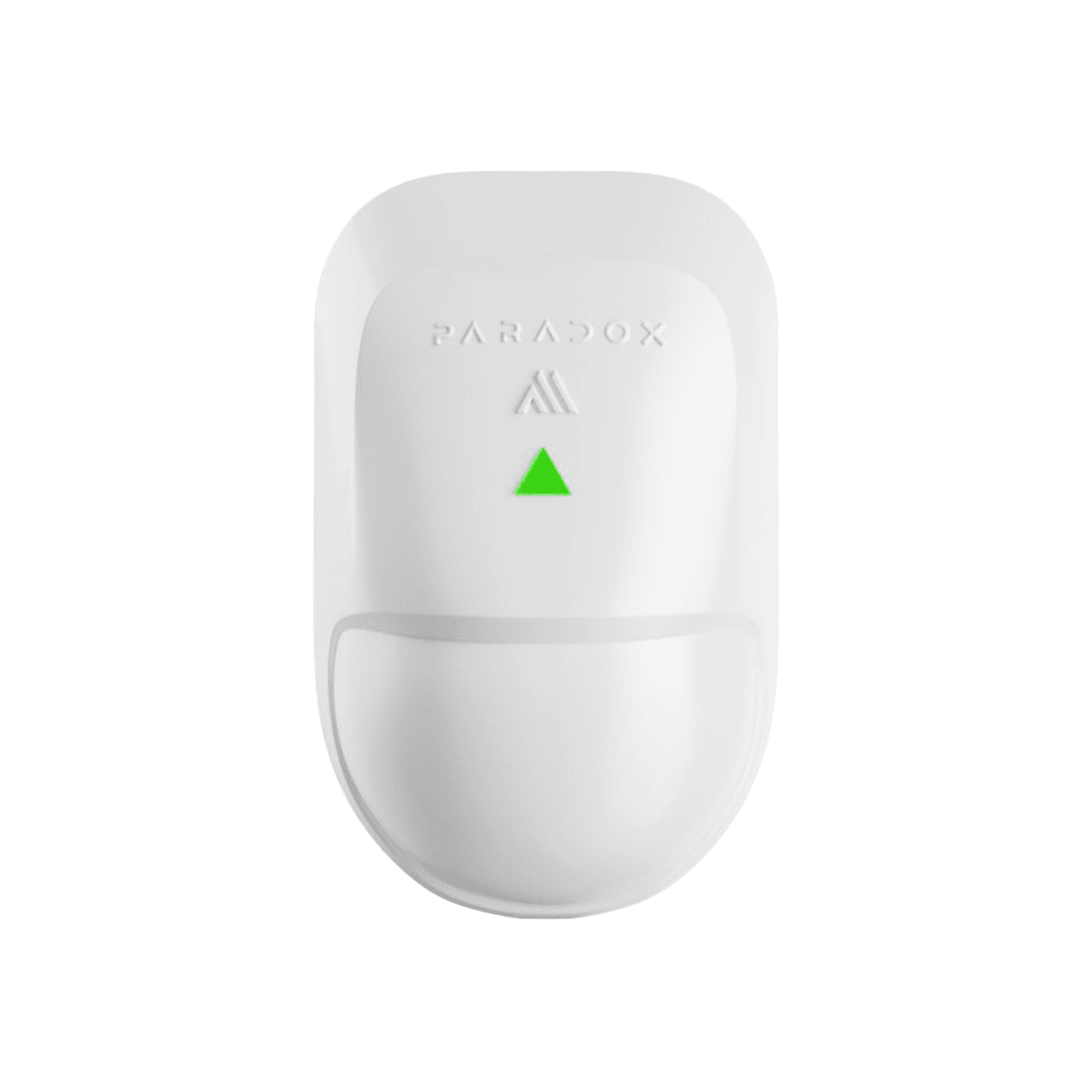 PMD5MM Indoor Miniature Motion DetectorInstallation manualPDF, 0.9 MB
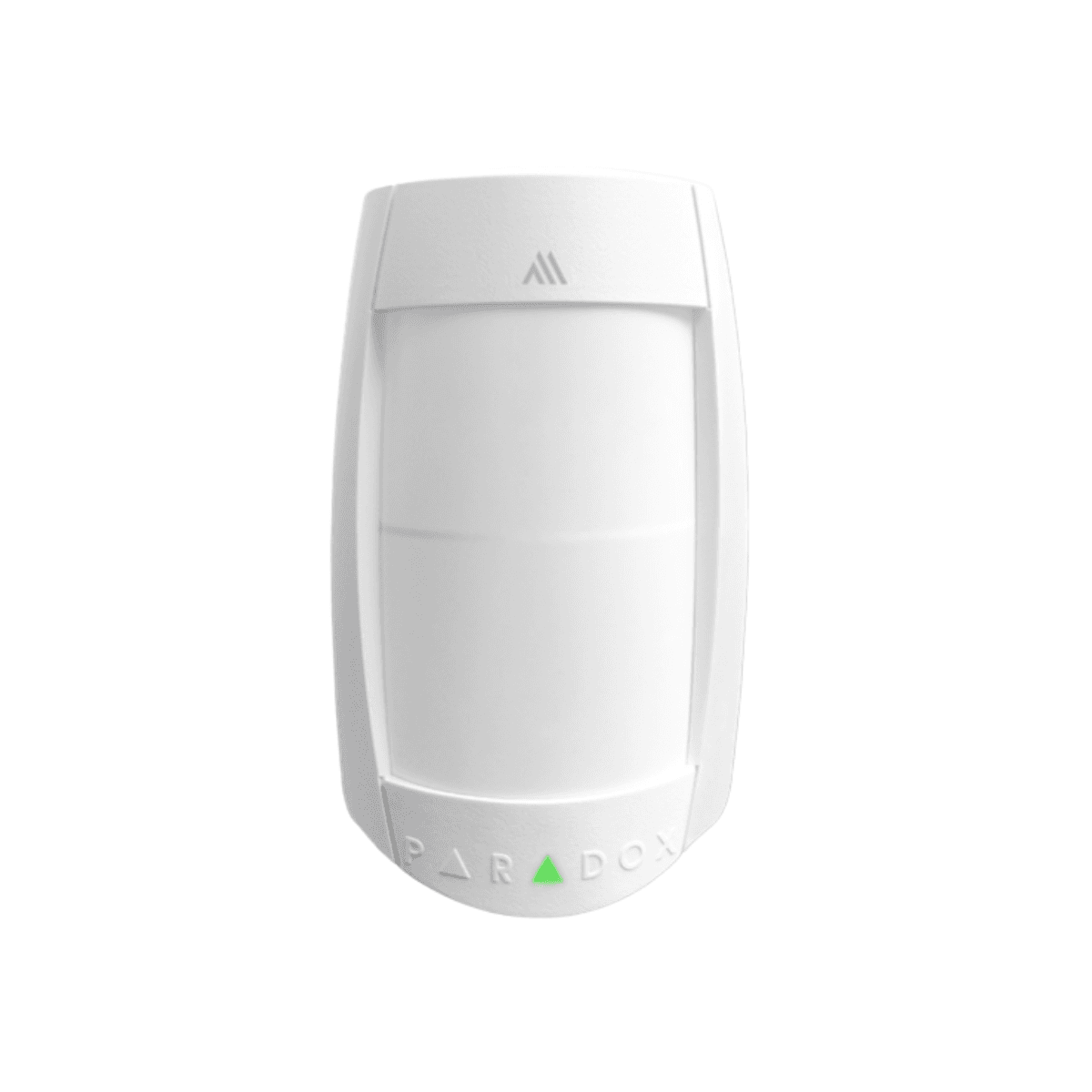 PMD75MM Digital Dual Optic Motion Detector with Pet ImmunityInstallation manualPDF, 1.0 MB
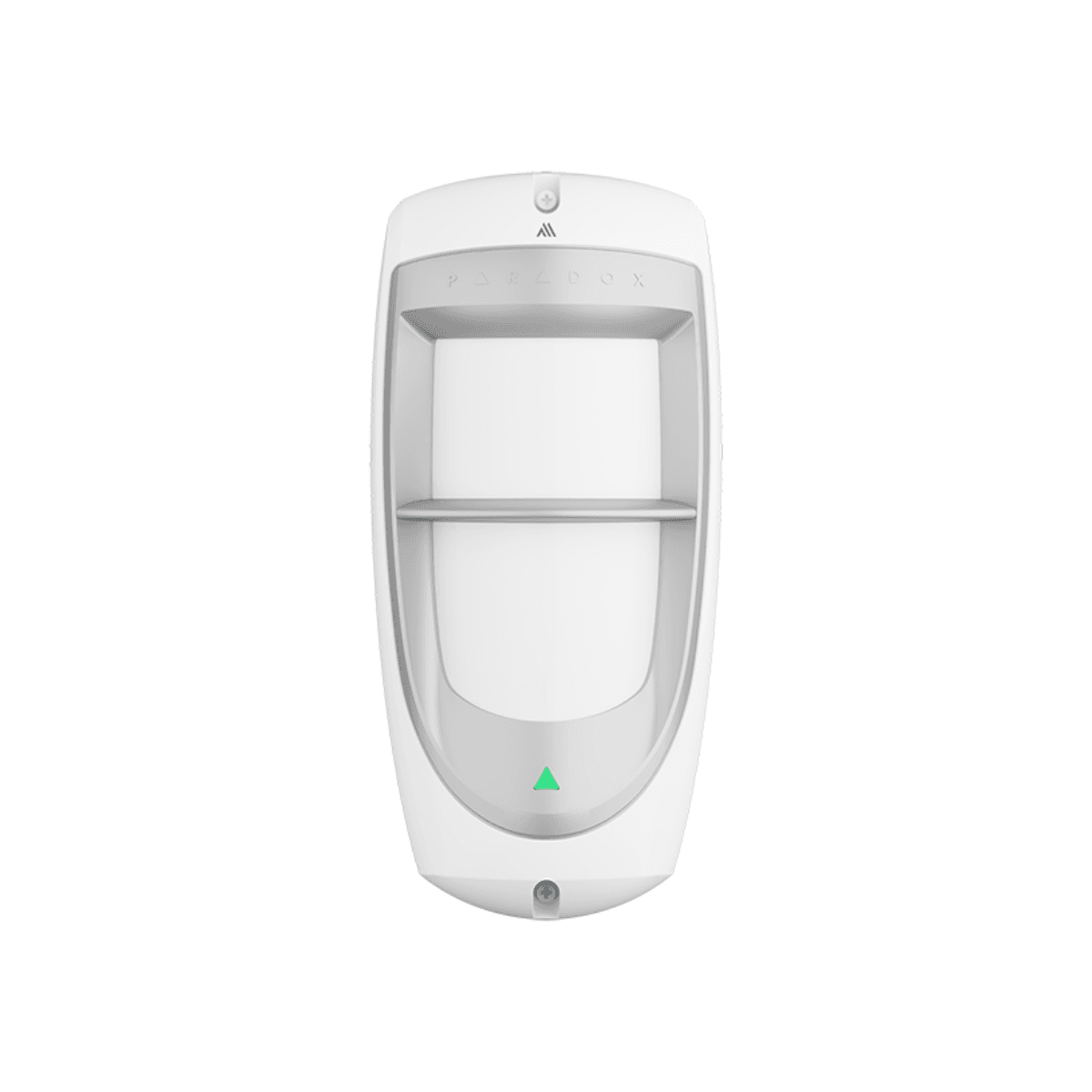 PMD85MM Outdoor Motion Detector with Pet ImmunityInstallation manualPDF, 1.5 MB
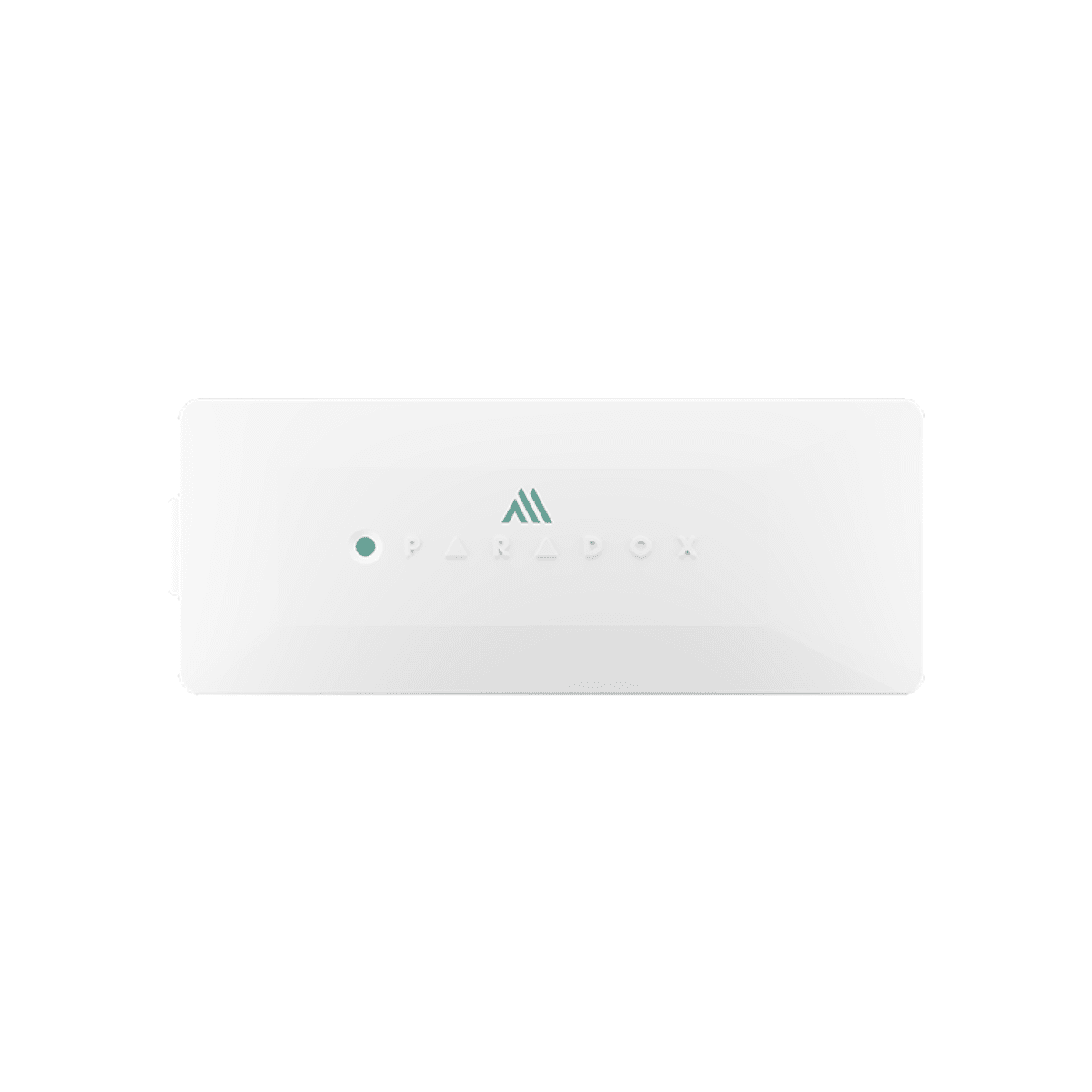 AMD12MM Motion SensorInstallation manualPDF, 0.8 MB
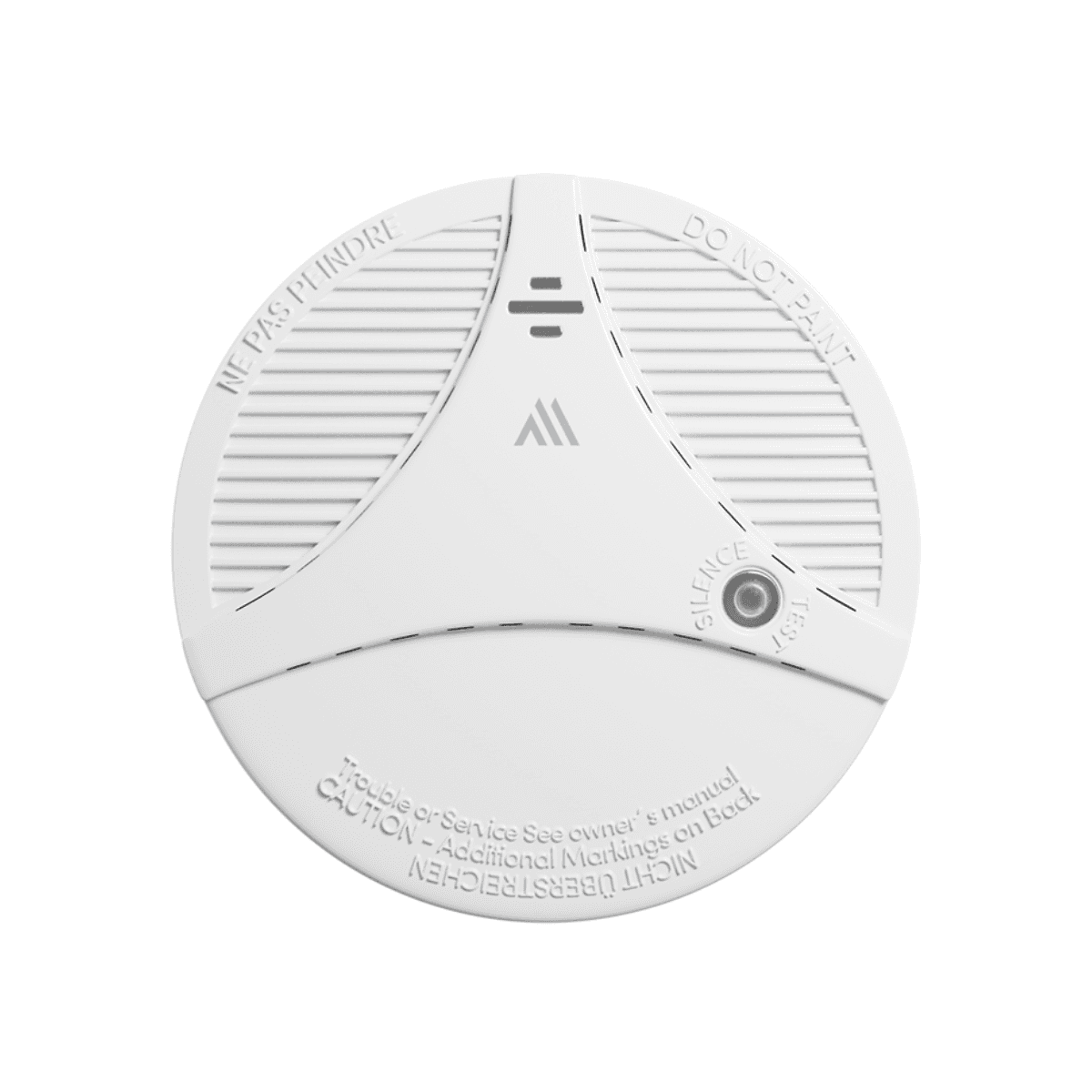 SD760M1010 Year Smoke DetectorInstallation manualPDF, 1.0 MB
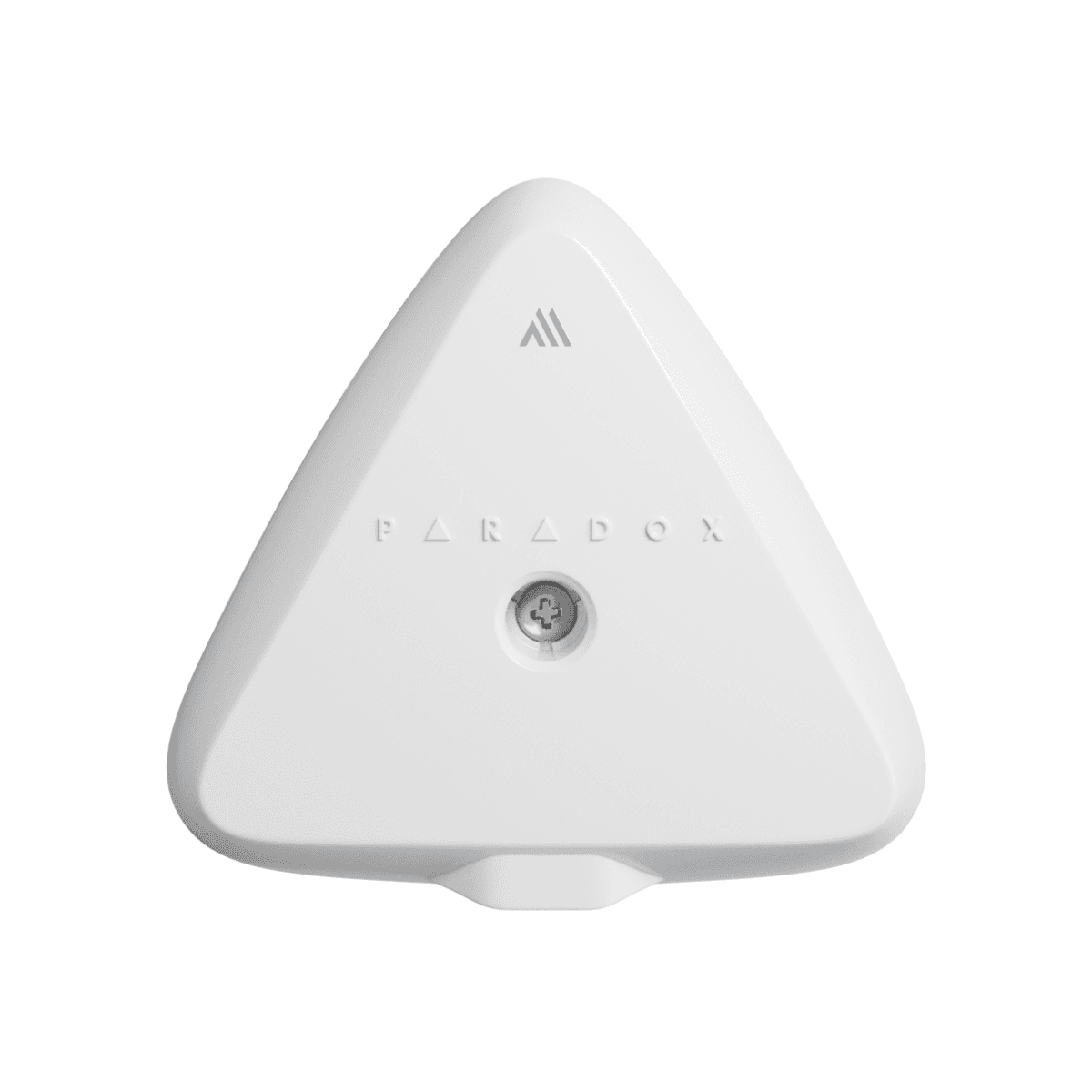 FD25MM Water DetectorInstallation manualPDF, 0.8 MB
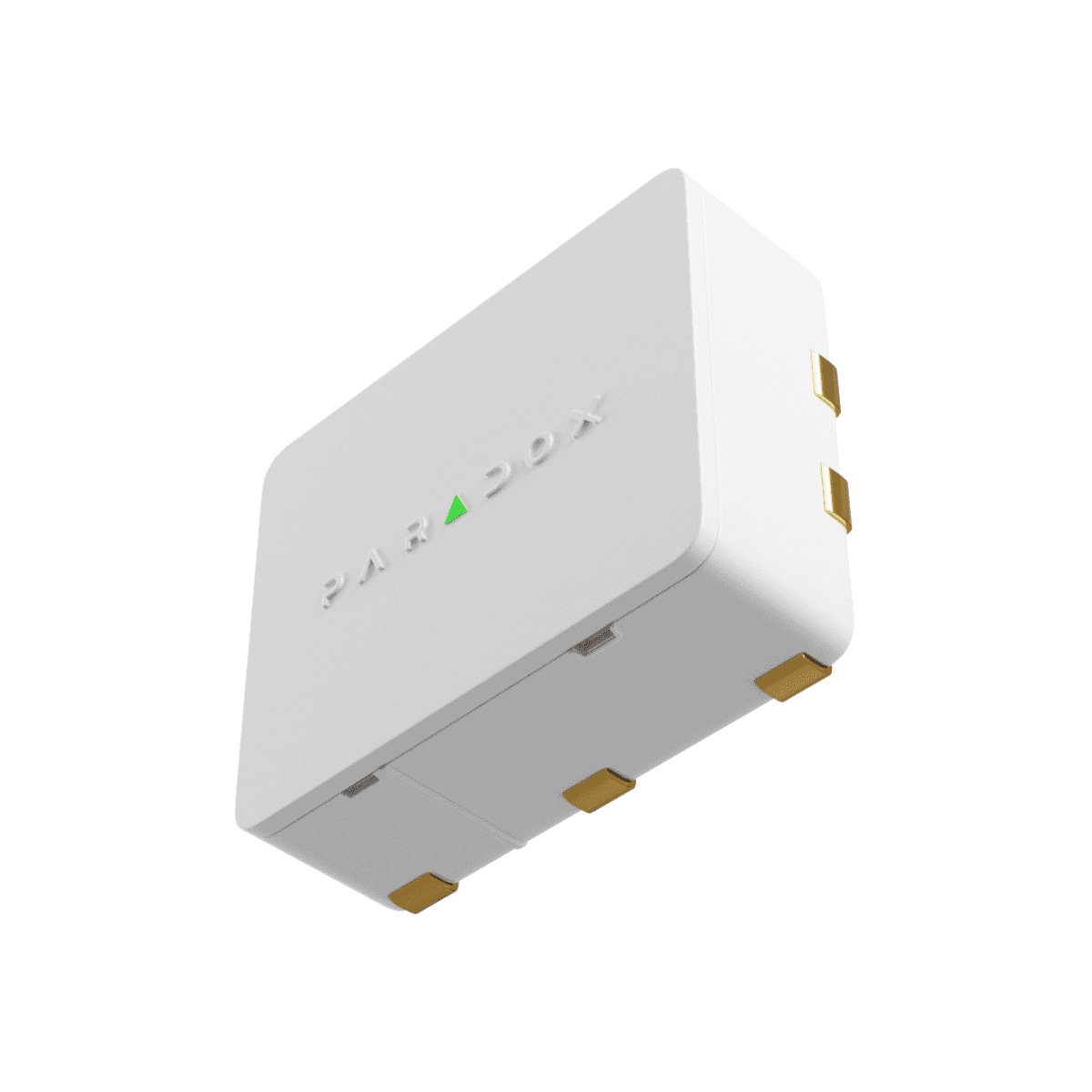 WD2MWater DetectorInstallation manualPDF, 0.9 MB
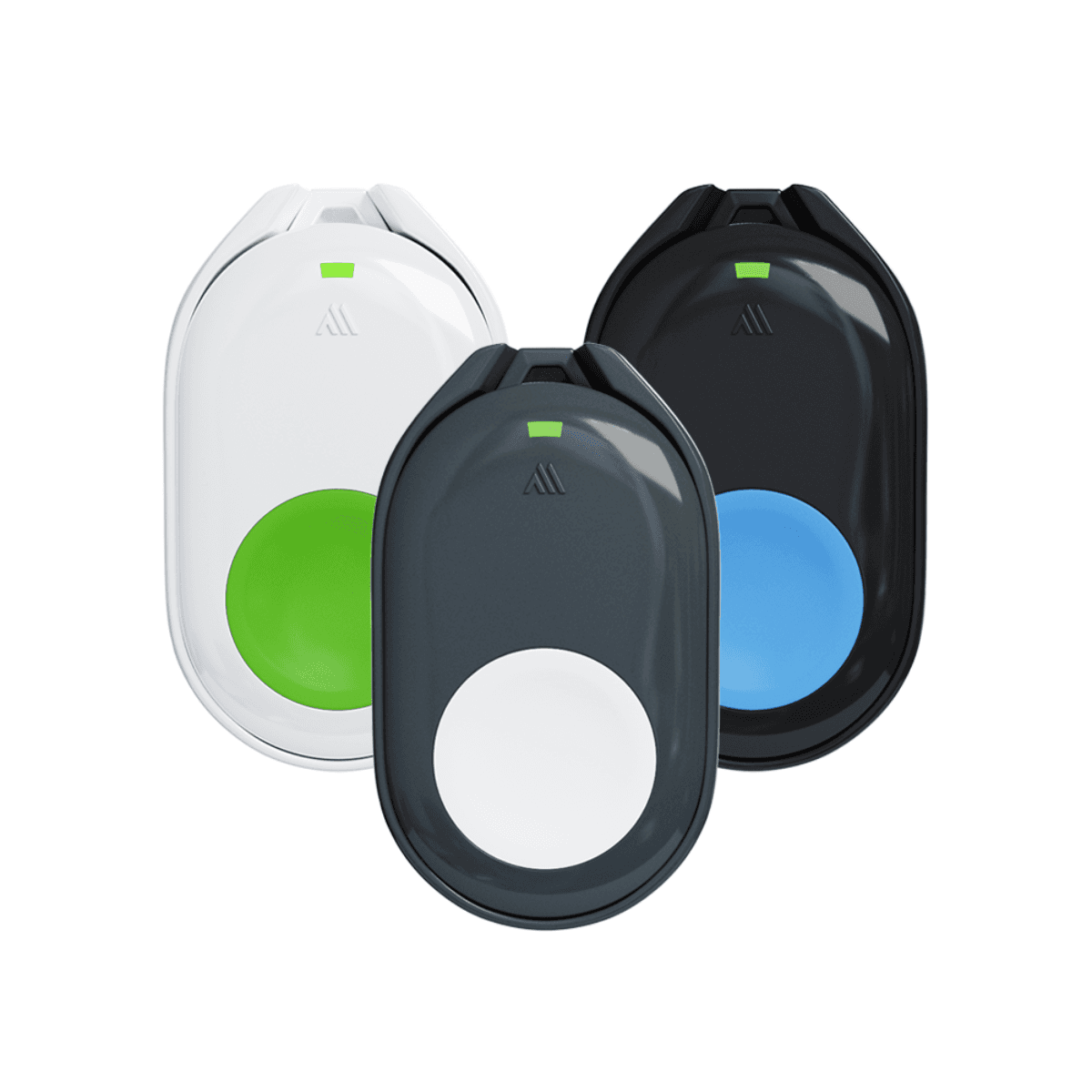
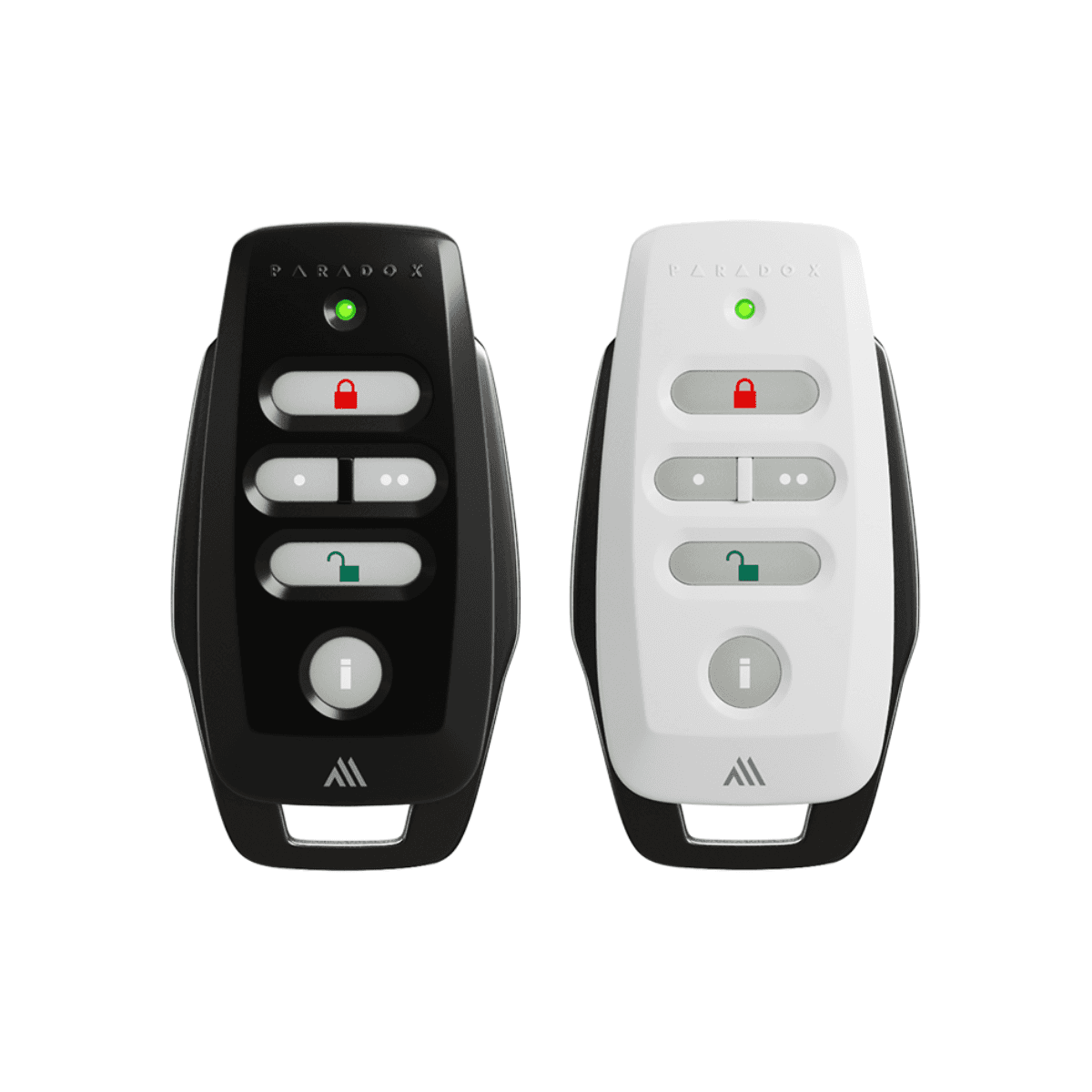
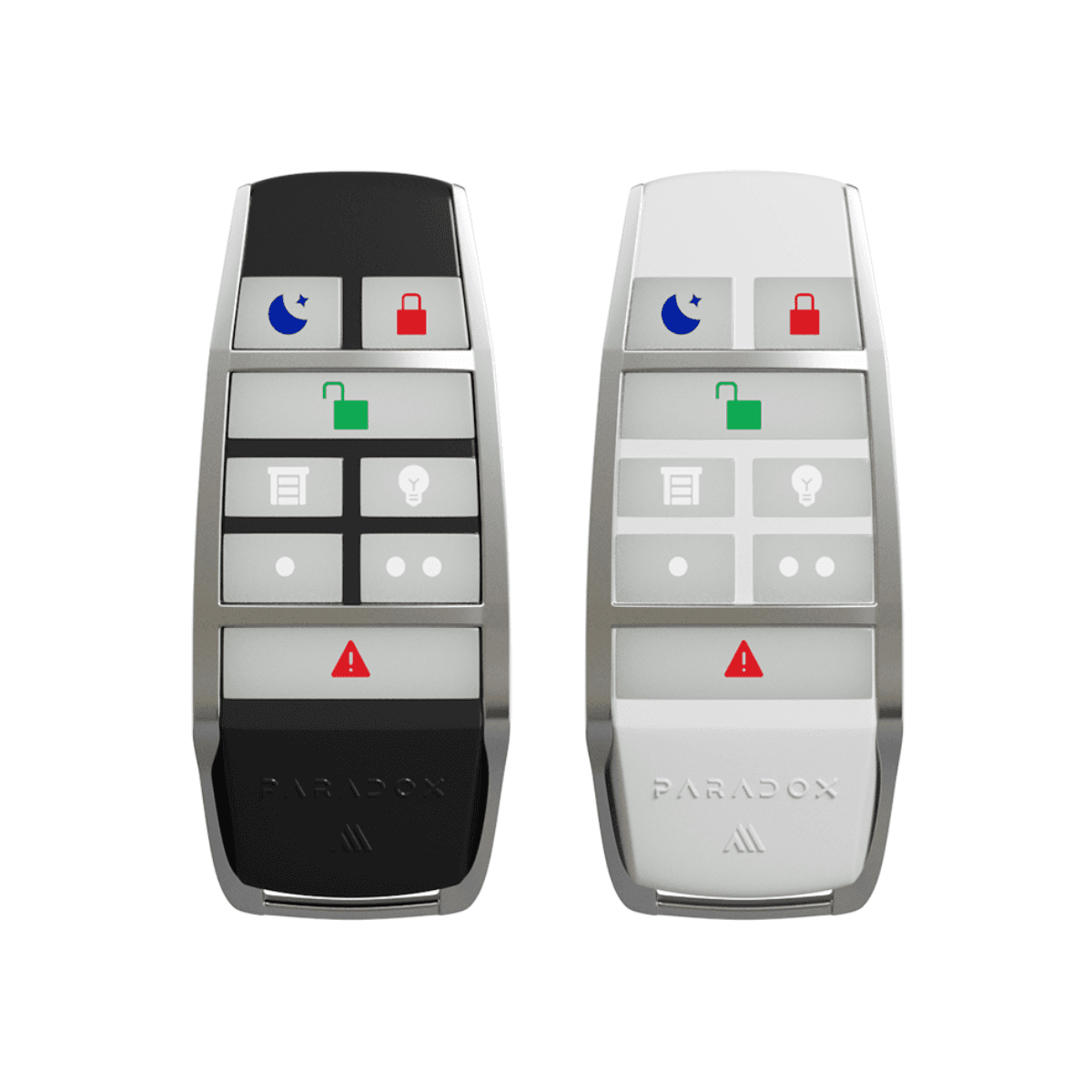
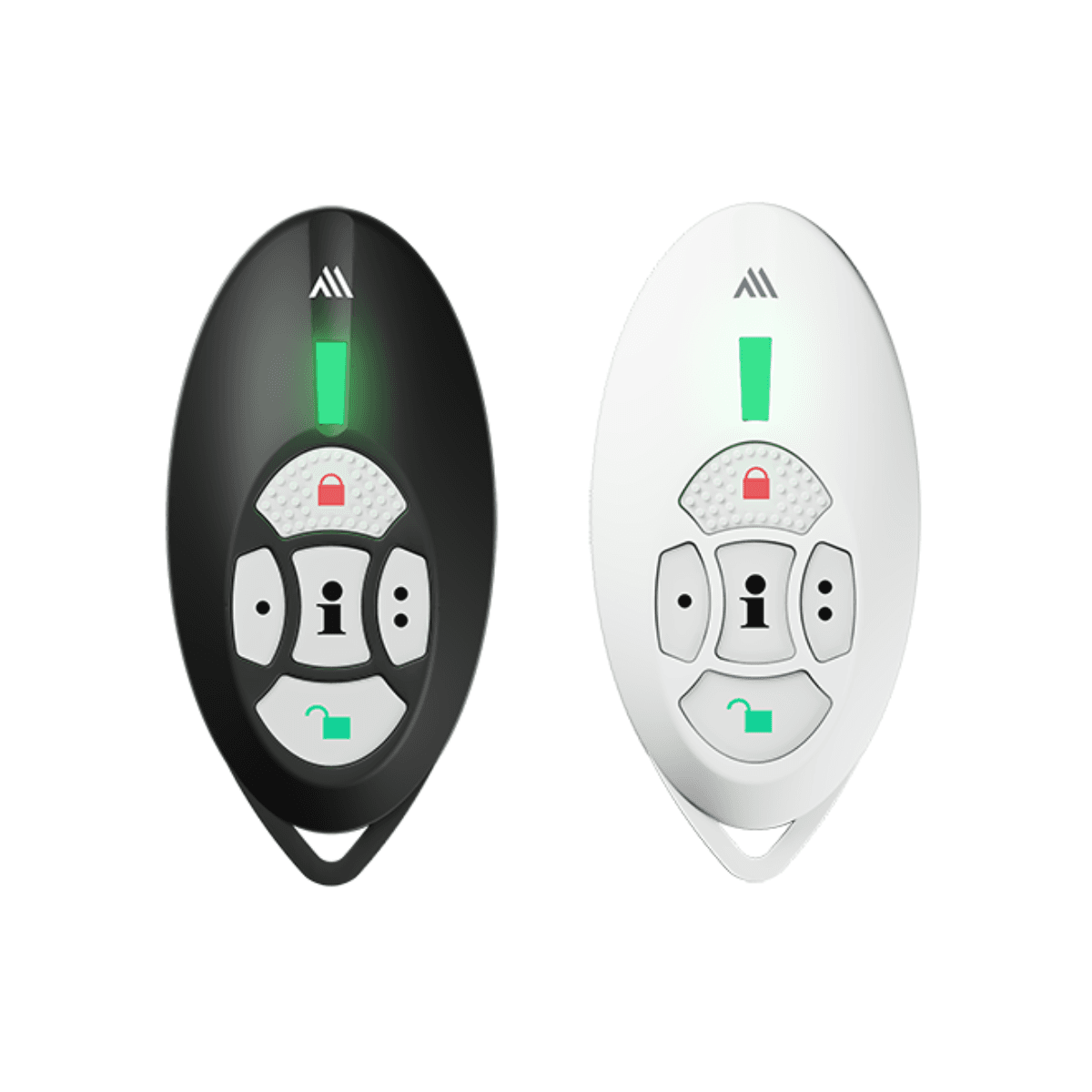
Remote Controls
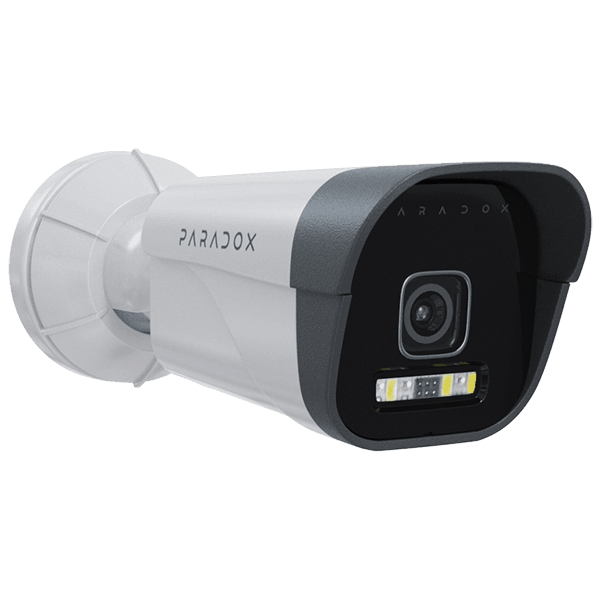
Sound Devices
Water Prevention
Converters
Older systems
- Magellan and Spectra SP control panels programming guideMG5050+SP65SP4000SP5500+SP6000+SP7000+Programming guidePDF, 2.2 MB
- Magellan and Spectra SP control panels installation manualMG5050+SP4000SP5500+SP6000+SP7000+Installation manualPDF, 4.2 MB
- Magellan and Spectra SP control panels user manualMG5050+SP65SP4000SP5500+SP6000+SP7000+User manualPDF, 2.5 MB
- EVO192 control panel installation manualEVO192Installation manualPDF, 3.3 MB
- EVO192 control panel user manualEVO192User manualPDF, 2.6 MB
- EVO192 control panel programming guideEVO192Programming guidePDF, 1.2 MB
- EVOHD+ control panel installation manualEVOHD+Installation manualPDF, 3.8 MB
- EVOHD+ control panel programming guideEVOHD+Programming guidePDF, 1.8 MB
- EVOHD+ control panel user manualEVOHD+User manualPDF, 2.7 MB
- EVO modules programming guideDigiplexProgramming guidePDF, 2.4 MB
- TM50 and TM70 touchscreen keypads installation manualTM50TM70Installation manualPDF, 0.3 MB
- TM50 and TM70 keypads user guide for Magellan and Spectra SPTM50TM70User manualPDF, 1.3 MB
- TM50 and TM70 keypads user guide for EVOTM50TM70User manualPDF, 5.1 MB
- K656 keypad user guideK656User manualPDF, 1.7 MB
- K641+ keypad quick install guideK641+K641R+Installation manualPDF, 0.3 MB
- K32LCD+ keypad quick install guideK32LCD+Installation manualPDF, 0.3 MB
- K32LX wireless keypad installation notesK32LXInstallation manualPDF, 0.1 MB
- IP150 internet module user guideIP150+User manualPDF, 0.8 MB
- IP180 internet module installation manualIP180Installation manualPDF, 0.9 MB
- PCS260 and PCS265 4G/GSM communicator installation guidePCS265PCS260Installation manualPDF, 0.4 MB
- PCS250 GSM communicator installation guidePCS250Installation manualPDF, 0.7 MB
- RTX3 wireless expansion module installation notesRTX3Installation manualPDF, 0.5 MB
- RPT1 wireless repeater installation manualRPT1Installation manualPDF, 0.3 MB
- 2WPGM two-way wireless PGM installation manual2WPGMInstallation manualPDF, 0.2 MB
- REM25 remote user manualREM25REM101User manualPDF, 0.2 MB
- PMD2P wireless motion detector installation manualPMD2PInstallation manualPDF, 0.4 MB
- DCTXP2 wireless 2-zone door contact installation manualDCTXP2DCT10Installation manualPDF, 0.4 MB
- DCT6 wireless door contact installation manualDCT6Installation manualPDF, 0.3 MB
- SD360 smoke detector installation and user manualSD360Installation manualPDF, 1.1 MB
- SP5500+, SP6000+ and SP7000+ control panels user guideSP5500+SP6000+SP7000+User manualPDF, 1.6 MB
Software
- BlueEye mobile appUser manualPDF, 2.1 MB
- BlueEye mobile appUser manualPDF, 2.1 MB
How the system works
01 of 10
The hub at the heart of it all
Every security device connects to one hub. It receives signals from the detectors, decides what to do and instantly alerts you and the monitoring station.
Always connected. Always secure.
Have any questions?
If you have additional questions about the Paradox M25 system, please contact us to schedule a free training session.